Custom Widgets
A widget is a modular component in the GUI that enables users to access information or perform a specific function. A user or an enterprise can incorporate custom widgets into their workspaces for various purposes including the following:
- Custom OneClick filters
- Order Entry Panels
- Highly customized views of market data, positions, or any other data within Deephaven
- Creating a custom widget requires knowledge of Java and Swing programming techniques.
The process of creating widgets is illustrated below:
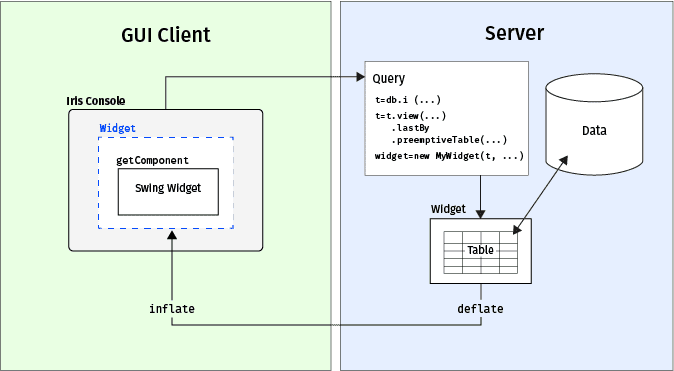
- First, a query is used to create the widget and specify the data to be included.
- When a widget is called by a user in the Deephaven console, an instruction is sent from the client to the server. The server "deflates" the widget and its state and sends them to a named instance on the client.
- When the client receives the deflated widget, it is "inflated" to its original form. The client then uses the inflated widget to install the GUI "component". Upon completion of this process, the resulting widget is displayed in the Deephaven console.
- When the source table on the server updates with live data, the widget can also be updated through listeners on the specified data.
Note
Custom Widgets are currently only supported in Deephaven Classic.
Creating a Widget
A custom widget must extend the LiveWidget class and implement two methods:
deflate()getComponent()
Objects must be deflated on the server side before they can be shipped to the client:
Inflatable<OBJECT_TYPE> deflate(ExportedObjectClient client);
The deflate method creates an object to hold all the information needed to create the GUI component. The object is of type Inflatable<LiveWidget>, which allows the client to inflate your widget after it has been deflated and shipped to the client.
After the LiveWidget has been inflated on the client, the GUI calls the getComponent method to create a Swing component, which is then installed within the Deephaven Console:
JComponent getComponent(AsyncPanel dataPanel, String viewId, String title, Object irisWidgetSupportObject, Logger log);
Example
In the following example, we are going to create a widget to demonstrate the general steps involved in creating your own widget. This example widget, called "LabelCustomWidget" will display a value from the last row of a table in the Deephaven console, as shown in the image below.
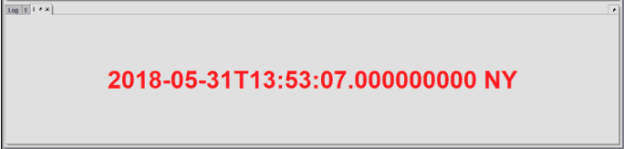
After creating and installing your class, you can run a query in your Deephaven console that imports the Java package and uses the LabelCustomWidget.
Step 1: Create the Java Class for the Widget
To create a widget, you must first create a Java class that implements the com.illumon.iris.db.tables.utils.LiveWidget interface. This interface allows the Deephaven client and server to interact appropriately to create the GUI component on the client.
Step 2: Implement WidgetState
The WidgetState is used to help inflate and deflate the widget to ship it from server to client.
Step 3: Implement deflate
All Custom Widgets must implement the deflate method, which will return a WidgetState object (that was implemented as an inner class in Step 2. Deflation allows the client to maintain handles to tables on the server rather than copying the entire data set over, which would defeat the purpose of the client-server architecture.
Step 4: Implement getComponent
All Custom Widgets must implement getComponent(). This will create the Swing JComponent that will display in the GUI.
Step 5: Define the Component to be Displayed in the Console
The next snippet creates the actual widget that will be displayed in the GUI. This simple example uses a JLabel (a display area for a short text string), but more complicated widgets will want to extend JPanel. For more information about creating GUI widgets, please refer to Creating a GUI With JFC/Swing.
Step 6: Install the Custom Widget
Compile the Java code into .class files, archive them into a .jar file, and install the .jar file in the customer directory; details are shown in Installing Custom Classes. Note that the client update service must be restarted and the client's Swing console must be updated, so that the new custom widget class will be available to client as well as the server.
Step 7: Open the Widget in the Console
To use the widget in the console, run the following query after installing your class on the server:
You must import the widget with its fully qualified name. See the full example code below.
Full Example Code
Setting Access Controls for a Custom Widget
To limit which users can view your widget from Persistent Queries, your widget must implement the LiveWidgetVisibilityProvider interface and override the getValidGroups() method. This tells Deephaven which Access Control (ACL) groups may view the widget.
For example, we could modify the "LabelCustomWidget" to have a String[] validGroups variable and a corresponding getter and setter:
A user can set the access controls in the persistent query that generates the widget. An example query to do that follows:
When this query is executed in Deephaven, only User1, User2 and individuals included in Group1 are allowed to open and view the widget using the Show Widget button in the Deephaven console.
For another example, see Setting Permissions for Viewing Plots.