Core+ installation and configuration
To get started with Deephaven Core+, you must first determine which version to install. Core+ packages are built using a specific Enterprise system version (e.g., 1.20231218.432) and a specific Community version (e.g., 0.33.6). You must select a package that matches the Enterprise version of your system and whatever Community Engine version you require.
For example, if your system is running Vermilion (1.20231218.432) and you want to use the 0.33.6 Community Core engine with jdk17, then you should download the deephaven-coreplus-0.33.6-1.20231218.432.tgz package.
You can find the published Core+ packages in Artifactory.
See the version matrix for the full list of tested versions.
Note
If you cannot install Core+ (e.g., if you are running Java 8), then to disable the "Community" engine option in the Code Studio, you must set the property WorkerKind.DeephavenCommunity.enabled to false in your iris-environment.prop file.
Prepare the system
The Deephaven installer can automatically unpack the Core+ archive on each machine in the system. To do so, you must set the DH_DND_VERSIONS variable. You may also manually install Core+ by unpacking the tar file using the following instructions.
Once you have selected the package, you must prepare each system for the installation. The Core+ package must be installed on every node in the cluster.
On each host, create the directory /usr/illumon/dnd, then extract the Core+ package into it. The default configuration included with Deephaven Enterprise is configured to expect the Core+ installation to exist at /usr/illumon/dnd/latest, so you must create a symlink to the tar extracted directory.
Caution
The files used in the below example (e.g., deephaven-coreplus-0.33.6-1.20231218.432.tgz) must be changed to match
the Deephaven version and Java version you have installed.
If manually installing a Core+ package, you should also create a Python virtual environment for that version. If you are installing into the "latest" directory as above, then after installing the venv you should create a symbolic link as follows:
At this point, you will be able to start Core+ Python workers.
Note
If you choose to use a path other than usr/illumon/dnd/latest, then you must restart the dispatcher processes (typically called db_merge_server and db_query_server) on each node in your system:
The requirements.txt file contains packages that must be installed, but does not explicitly list all dependencies. There are two more files in the same directory as the requirements file that list all the dependencies as determined by pip freeze on a virtual environment with the requirements installed:
frozen-requirements-1.20231218.432-0.33.6.txthas all the necessary packages for the server-side virtual environment.frozen-requirements-client-1.20231218.432.txthas all the necessary packages for the Deephaven Core+ Python client.
These files can also be extracted from the Core+ archive under the io.deephaven.enterprise.dnd-0.33.6-1.20231218.432/py/resources directory.
Customization
You can install multiple versions of Core+ to take advantage of newer Core+ Engine improvements. You can do this by extracting the package next to any others in the /usr/illumon/dnd folder and then adding some additional configuration to the iris-environment.prop file. You may also reuse the same installation directories for multiple WorkerKinds, but with different Python virtual environments or custom libraries for distinct applications.
There are four properties that, together, define a runnable version:
The DeephavenCommunity part of the property defines a class of worker with the same name. You can copy these properties and change DeephavenCommunity to something else, for example CorePlusBeta, then change the path and title properties to define the installation. For example, the following set of properties will define a new worker kind for a hypothetical Community version of 0.30.0dev3:
Note: If you are installing Python, follow the steps above, creating a new venv directory for the Core+ version being installed, if it differs from the existing one.
To modify the configuration, export it using the dhconfig tool, edit it and then import it again, with the dhconfig tool as shown below
Important
You must restart the Query Server, Merge Server and Web API Service on all nodes on which you install the package. Also, you must refresh your browser without caching.
Once you refresh your browser instance, you will see the new instances in the Engine dropdown menu:
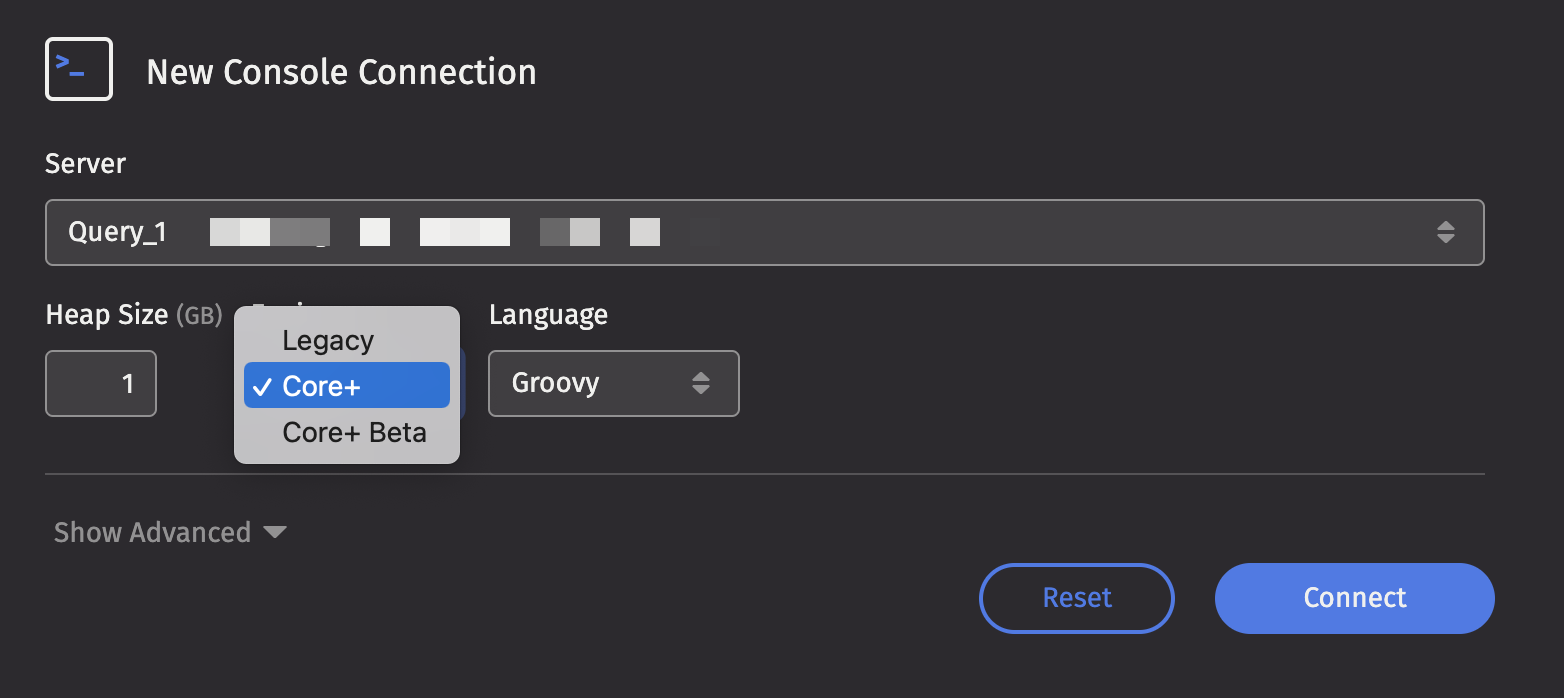
When selecting the engine (Legacy, Core+, or Core+ Beta) in a Code Studio, a property controls the display order for each worker kind. Lower values are displayed first by the Code Studio drop-down. The Legacy engine is hardcoded to 100. Core+ workers default to 200, but in the default v1.20230511 (Vermilion) iris-environment.prop, they are set to 50. As a result, new Vermilion installations display Core+ first, but upgraded installations display Legacy first.
In the following example, the "Core+ Beta" worker is displayed after a "Core+" worker with display order 50 but before the "Enterprise" worker with display order 100.
Installing Custom Python Virtual Environments
If DH_DND_PYTHON is set to true in your cluster.cnf file, then a default Python virtual environment is configured for Core+ workers. You can also create alternative Python virtual environments and assign them to your own custom worker kinds.
If you do not already have Python installed for Enterprise, see our installation guide. To install a Python environment for the Core+ worker, you must create a virtual environment and configure it properly for the installed Community version. Deephaven recommends placing them in /usr/illumon/dnd/venv/. In the following example, we create a default virtual environment in the /usr/illumon/dnd/venv/0.33.6-custom directory. The requirements.txt file provides a list of packages and versions that Deephaven has tested with this distribution. You should use it as a starting point for adding, removing, or replacing packages. Deephaven does not test our integrations with package versions other than those listed in requirements.txt.
Note
In the snippet below, be sure to change the path to match your Core+ install and select the proper Community pip package version. If you are not installing into latest, the ln command is unnecessary.
Custom Libraries
There are several ways to provide Core+ workers with custom Java libraries:
- The "Extra Classpaths" field from a console or Persistent Query configuration, which can specify arbitrary locations.
- A Core+ WorkerKind configuration pointing to a customer-created location, e.g.: This can be useful to define several different kinds of workers, with distinct custom libraries that depend on the worker's role. By defining several worker kinds, it is easy to switch between them, and for administrators to change the libraries without requiring additional per-worker configuration by the user.
- A default directory found in every Core+ installation, e.g. /usr/illumon/dnd/latest/custom_lib/.
Installing JavaScript Plugins
Community JavaScript plugins can be installed in Core+ workers.
-
Create a
Dockerfilecontaining the following: -
Update the list of package specs passed to
./pack-plugins.shbased on the plugins you want to install. The script usesnpm packunder the hood and should support any valid <package-spec>. Typical specs would be a package name + version (e.g.,@deephaven/js-plugin-matplotlib@0.4.0) or a local file path to a non-published package. See the npm docs for additional documentation.
Note
Local file paths require volume mounts in order to be available to the Docker container.
Caution
This will replace the default JS plugins that are typically installed, so you will need to include those if you want to keep them. To see the existing list of installed plugins, you can run cat /usr/illumon/dnd/latest/js-plugins/manifest.json on the server hosting the DHE installation.
-
Build the image:
-
Run the container:
This should create a
build/js-pluginsfolder on your host machine in the directory containing yourDockerfile. -
Copy the
build/js-pluginsdirectory to a tmp directory on the server running Enterprise: -
You can now delete the
build/js-pluginsfolder on your host machine, as you will not need it anymore. -
On the server, copy the
js-pluginsdirectory into the Core+ install: