10 new Deephaven themes
Generating themes with an AI agent, an AGENTS file, and a lot of CSS custom properties
February 12 2026


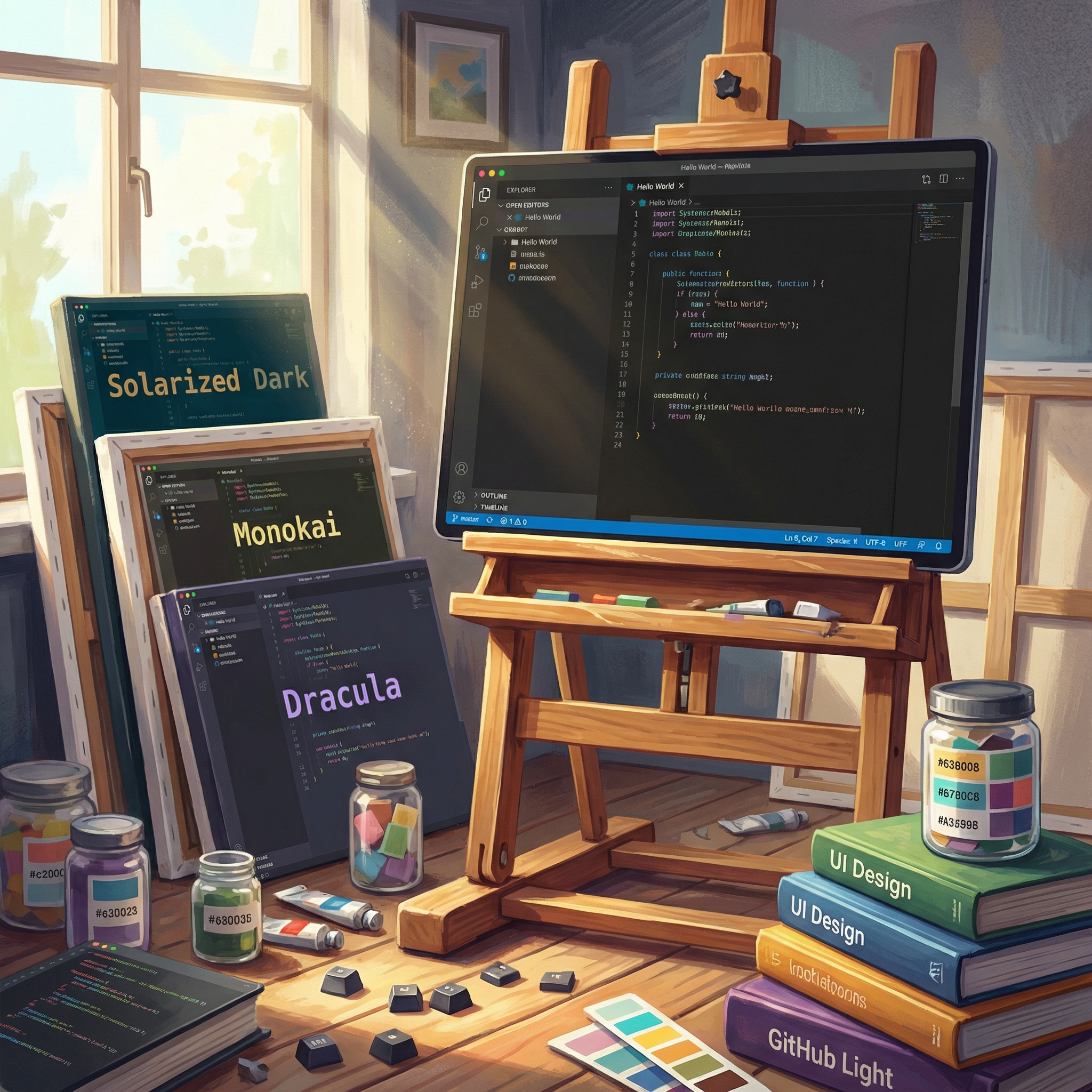
If you spend enough time staring at a data tool, you start to care about what it looks like. I don't mean in a design-school way - more in a "I'm going to be looking at this grid of numbers for the next 8 hours and I'd prefer it didn't burn my retinas" way. Dark mode was a start. But one dark mode doesn't fit everyone. Some people want Dracula. Some people want Solarized. Some people want whatever SynthWave '84 is (it's neon, and it's great).
Deephaven has supported custom themes for a while now through its plugin system, but building a full theme from scratch is a lot of work - you're looking at 300+ CSS variables covering gray scales, chromatic color palettes, semantic tokens, and editor syntax highlighting. So I set out to make that easier, and ended up using Claude as an AI agent to generate 10 new themes from popular VS Code color schemes.
The theme pack
The deephaven-plugin-theme-pack plugin now ships with 11 themes - the original FT Theme (light) plus 10 new ones:
Dark themes (8):
- Dracula
- IntelliJ Dark
- Kimbie Dark
- Night Owl
- Red
- Solarized Dark
- SynthWave '84
- Tomorrow Night Blue
Light themes (3):
- FT Theme
- IntelliJ Light
- Solarized Light
Install it with pip and the themes show up in your Deephaven settings:
That's it! Install the plugin, restart the server, and pick a theme from the settings panel. Tables, charts, code editor - everything switches over.
What some of these look like
A few highlights:
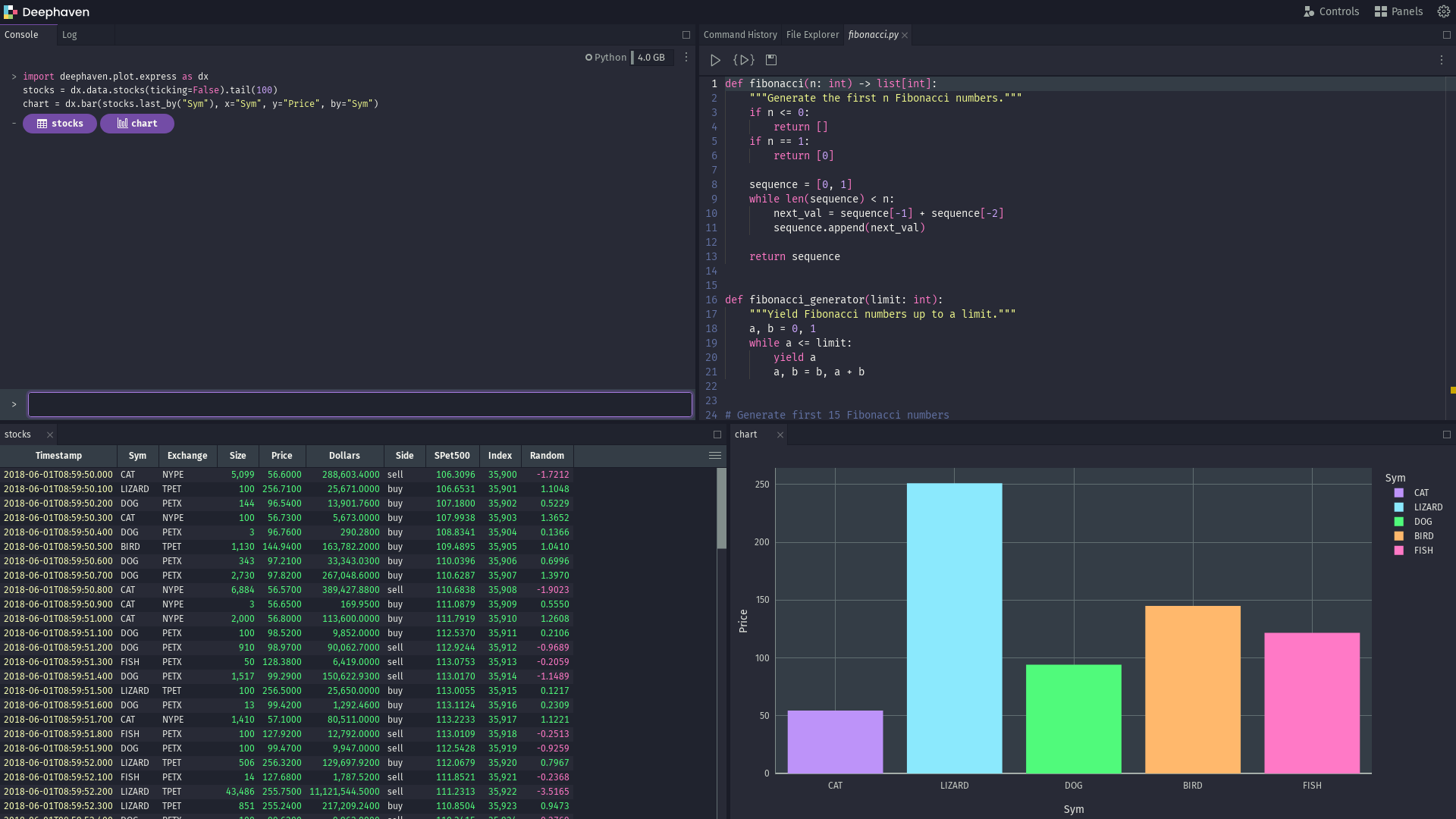
Dracula is probably the most popular dark theme in the VS Code ecosystem, and it translates well. The purple-tinted grays and bright accent colors work nicely against Deephaven's table grid.
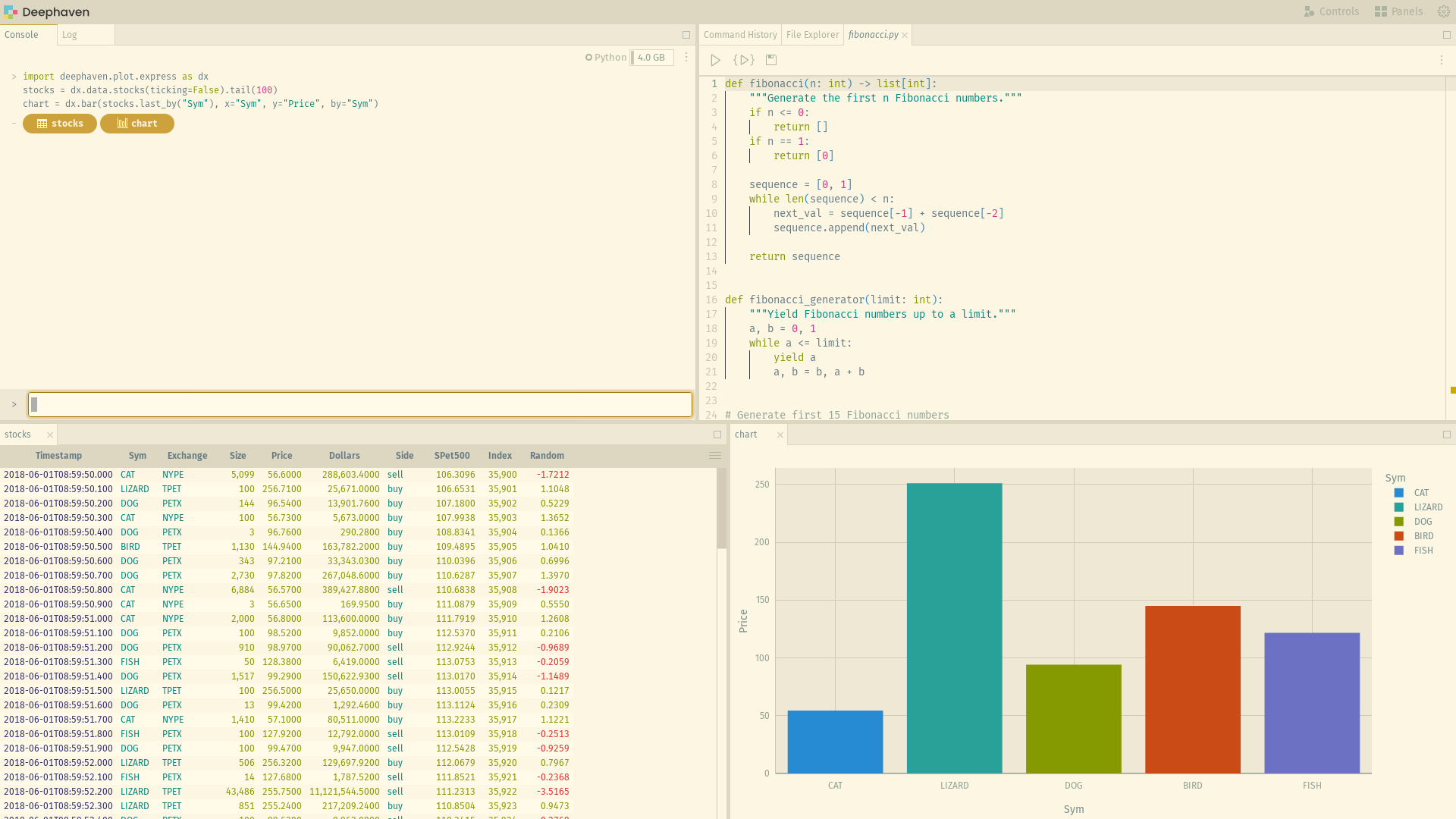
Solarized Light is one of those themes people either love or love to argue about. The warm yellowish background is distinctive, and if you already use it in your editor you'll feel right at home.
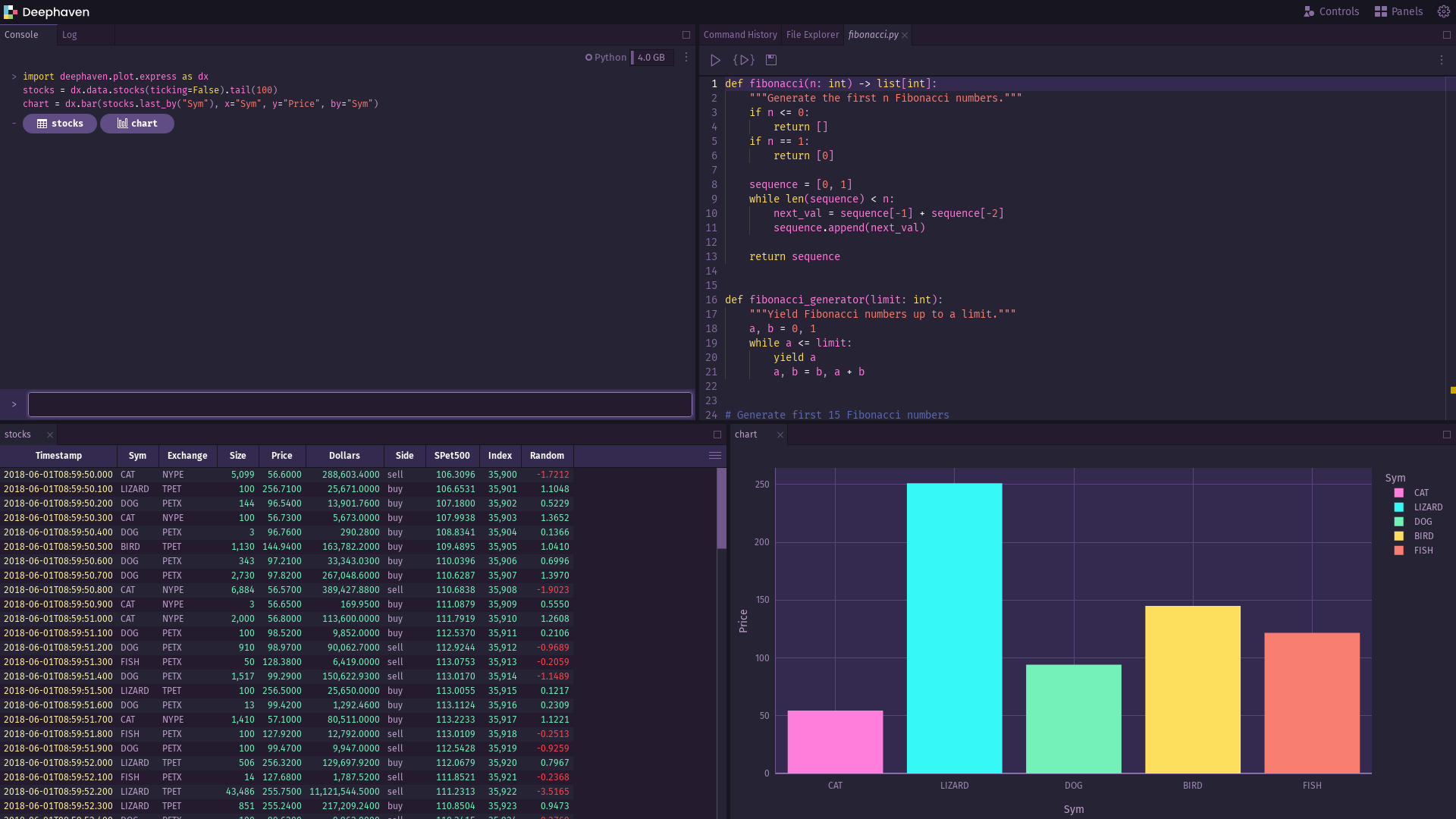
SynthWave '84 is the fun one. Neon pinks and cyans on a dark purple background. Probably not what you'd pick for a board presentation, but it makes late-night data exploration more enjoyable.
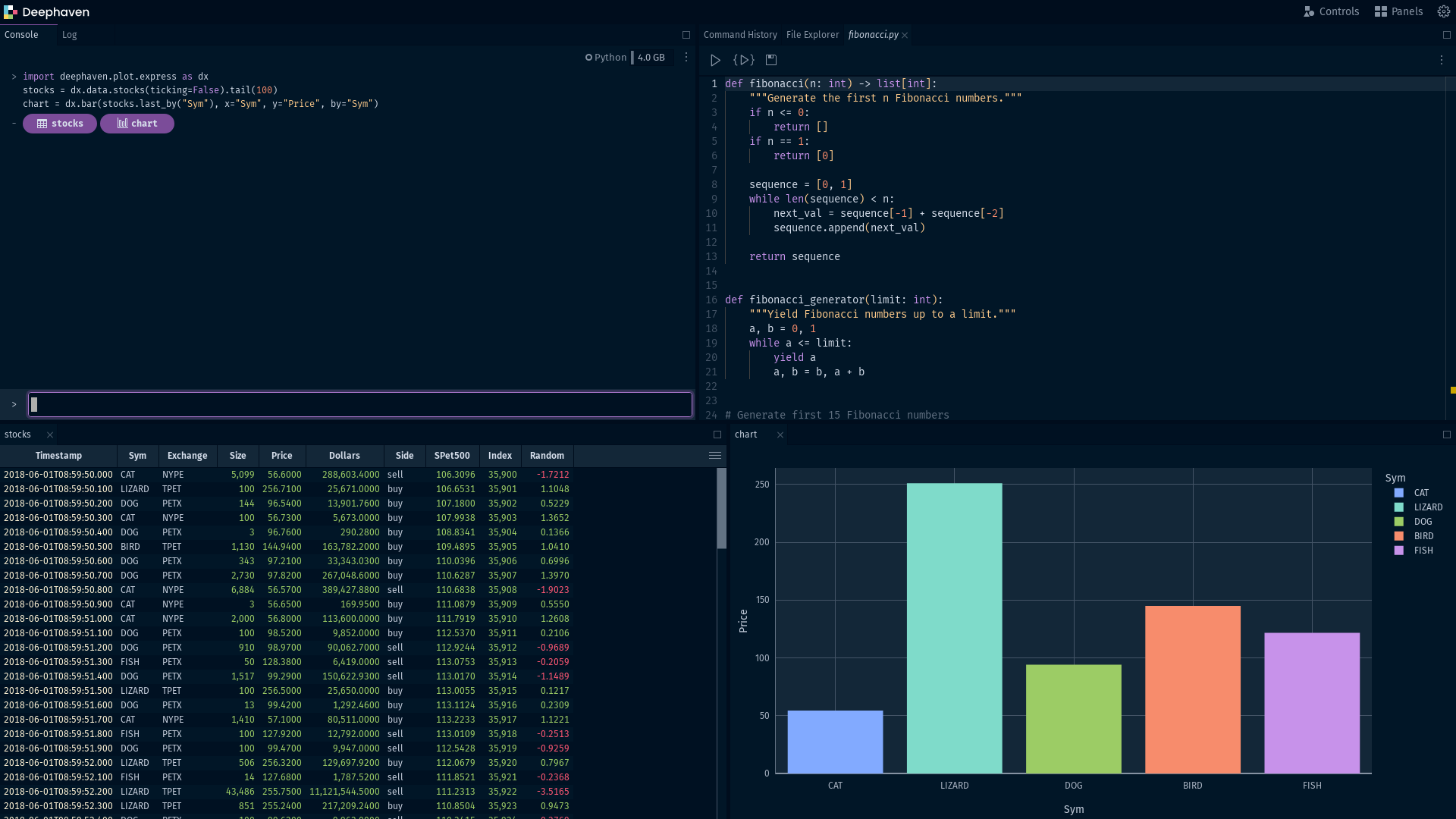
Night Owl has low-contrast colors tuned for working at night. If you're someone who does most of their coding after dark, this one is probably for you.
How an AI agent built these
Here's the interesting part. Each of these themes was generated by giving Claude a VS Code theme JSON file and a set of instructions. The output is a complete CSS file with all the custom properties Deephaven needs.
The process works because of a short CLAUDE.md file - basically a spec document that tells an AI agent how Deephaven's color system works and how to produce a theme CSS file from a set of input colors.
Deephaven's design system is based on Adobe Spectrum. That means 11 shades of gray plus 14 shades each across 13 chromatic color families. Rather than hand-picking 300+ color values, the CLAUDE.md instructs the agent to generate a color.js script that interpolates full palettes in OKLCH color space from a handful of anchor colors. It also includes a mapping table that translates VS Code token scopes to Deephaven's editor variables, since the two systems tokenize syntax differently.
The whole point of the CLAUDE.md file is that you can hand it to an AI agent along with any VS Code theme JSON and get a reasonable Deephaven theme out the other end.
A few things needed hand-tweaking after generation. But overall, the edits were minor—mostly small contrast adjustments and accent color tweaks.
Make your own
The CLAUDE.md file is included in the theme pack plugin repo. If your favorite VS Code theme isn't in the pack yet, you can use it to create your own:
- Grab the VS Code theme's color JSON - you can export your current theme by running
Developer: Generate Color Theme From Current Settingsfrom the VS Code command palette. - Give it to Claude (or another capable AI agent) along with the CLAUDE.md instructions.
- The agent generates the CSS file with all the required custom property overrides.
- Drop it into a Deephaven theme plugin and register it.
The CLAUDE.md is written around VS Code themes, but it doesn't have to stay that way. Whether you're using a company brand guide, a Figma design system, or simply a collection of hex colors you prefer, you can modify the CLAUDE.md to reflect that input format. The core of it - how Deephaven's color scales work and what variables to override - stays the same regardless of where your colors come from.
The takeaway
I wanted more theme options in Deephaven and didn't want to spend weeks hand-crafting CSS for each one. Writing a thorough spec (the CLAUDE.md file) and then pointing an AI agent at VS Code theme files turned out to be a fast way to get there. Ten new themes, each about 300-350 lines of CSS, mostly generated rather than manually written.
If you're a theme person, install the pack and try them out:
If your preferred color scheme isn't in there, the CLAUDE.md file and the process described above should get you most of the way to your own.
Want to dive deeper? Check out:
Questions? Join our Slack community.