Using Core+ Workers
Once the Core+ (Deephaven Community Core plus Enterprise) integration has been installed, you may either launch a Core+ worker from a Code Studio, or install a Persistent Query.
The newly created worker is running the Deephaven Community Core engine with Enterprise extensions. After describing how to start a Core+ worker, this page provides a brief overview of using the Core+ Groovy and Python extensions. Refer to the Community Core documentation for information on features and the Core API. For details on the Groovy API, refer to the Core+ Javadoc. For details on the Python API, refer to the Core+ pydoc.
From a Code Studio
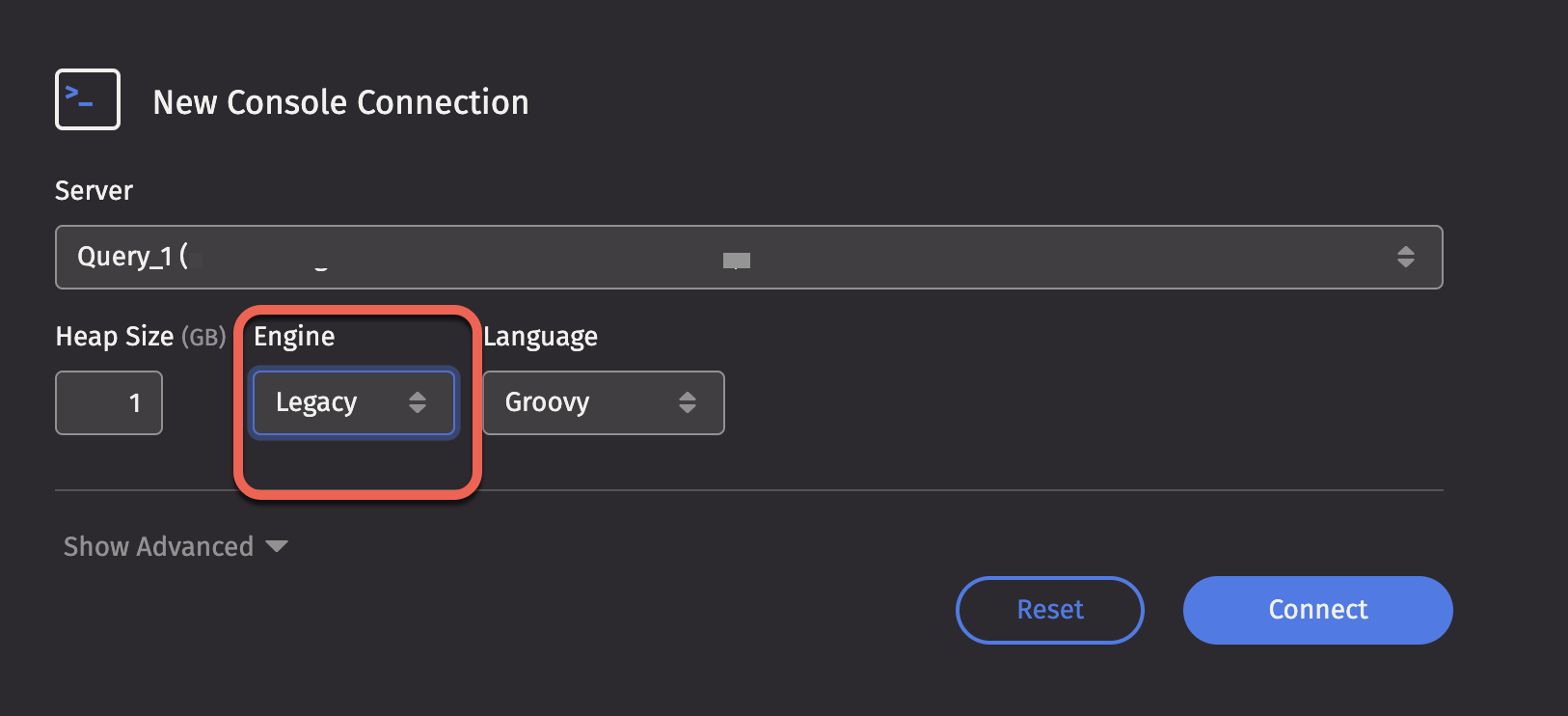
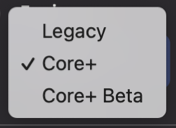
First, select the language you want, then click the Engine drop-down menu and select the desired version. Click Connect.
Note
Depending on how the Deephaven system is configured, you may see more than one option available for Core+.
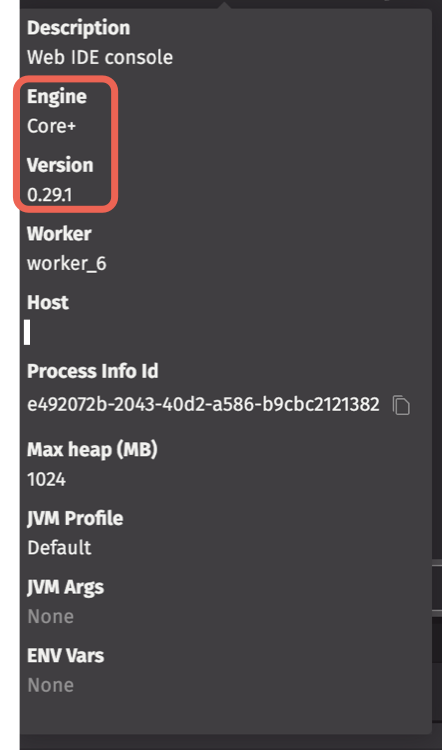
Once the worker is started, you will see the Code Studio Console where you can write and execute Core+ queries. You can find the information about the worker kind and Community Core engine version in the Session Details pop-up.
Note
Command History for Core+ workers is separate from Legacy workers since Community Core and Legacy worker commands are not compatible.
When you are done with the worker, click the Disconnect button to shut down the worker.
From a Persistent Query
You may also configure a Persistent Query to run a Core+ worker as documented in the Web and Swing interfaces.
Tables and widgets exported from a Core+ worker are not available in Swing, you must use the Web Interface.
Query API
The Core+ integration provides a Database interface so that you can read and write Live and Historical tables from the Deephaven Enterprise data store.
Enterprise Core+ Groovy Extension
The Groovy extension provides a single object (db) that provides:
- Live table access via
db.liveTable(...). - Historical table access via
db.historicalTable(...). - Live and historical table access as a PartitionedTable.
- The database catalog, including functions to retrieve table definitions, namespaces, and table names.
Note
See
See the Core+ Database documentation for Java.
For example, the following query accesses a table MarketUs.NbboQuotes:
To retrieve the list of all available tables:
Enterprise Core+ Python Extension
Similar to Groovy, the Python integration also provides a single object db.
For example, the following query accesses a table MarketUs.NbboQuotes:
To retrieve the list of all available tables:
Note
See See the PyDoc for more details.
Sharing tables between workers
Often you will want to share tables between workers to avoid duplication. You can share tables between Core+ workers and from a Core+ worker to Legacy workers using URIs with the ResolveTools library, or using the RemoteTableBuilder.
The dh:// URI scheme resolves a table from a Community worker using the host name, port, and table name. For example: dh://my-host.domain.com:12345/scope/MyTableName. Note: this is only for connection to Community Core workers running outside the Deephaven Enterprise system. This is useful to connect to an external Deephaven Core worker.
More frequently, you connect to a table served by a Persistent Query. The pq:// URI allows you to specify a query by name (pq://PqName/scope/MyTableName) or serial number (pq://1234567890/scope/MyTable), and returns a Table that gracefully handles the state of the upstream table. The pq:// URI scheme and the RemoteTableBuilder both provide reliable remote table access that gracefully handles disconnection and reconnection.
PQ URIs look like this when identifying by query name:
pq://PqName/scope/MyTableName
Or this when identifying by query serial:
pq://1234567890/scope/MyTable
Using URIs from Core+ Workers
Community workers can subscribe to both URI schemes using the ResolveTools class. The workers must be running to fetch the results:
You may also include several URI encoded parameters to control the behavior of the table.
| URI Option | Description | Example |
|---|---|---|
snapshot | If set to true, the result table is a static snapshot of the upstream table. | pq://PqName/scope/MyTable?snapshot=true |
columns | The set of columns to include in the subscription. The columns must exist in the upstream table. | pq://PqName/scope/MyTable?columns=Col1,Col2,Col3 |
onDisconnect | The behavior of the table when the upstream table disconnects for any reason. retain retains all rows at the time of disconnection. clear removes all rows on disconnect (clear is the default behavior). | pq://PqName/scope/MyTable?onDisconnect=retain |
retryWindowMillis | The window in milliseconds that the table may try to reconnect up to maxRetries times after an upstream failure or failure to connect to an available worker. | pq://PqName/scope/MyTable?retryWindowMillis=30000 |
maxRetries | The maximum number of connection retries allowed within the retryWindowMills after an upstream failure or failure to connect to an available worker. | pq://PqName/scope/MyTable?maxRetries=3 |
Note
If referencing a Persistent Query by name, the name must be URL encoded. This is important when the name has spaces or other special characters like slash. To escape values, use urllib.parse.quote in Python and java.net.URLEncoder.encode in Java.
Using URIs from a Legacy worker
To use ResolveTools from a Legacy worker, you must import UriConfig and invoke initDefault() before using .resolve() or the resolve call fails.
Note
Legacy workers do not support additional URI-encoded parameters or automatic reconnections when subscribing to Core+ workers
Using RemoteTableBuilder
Core+ also provides RemoteTableBuilder which allows you create reliable connections between workers. Create a new instance using the RemoteTableBuilder.forLocalCluster() method and then specify the query, table name and optional Table Definition. If you do not specify the Table Definition, then the worker must be running in order for the operation to succeed. You can then call subscribe(SubscriptionOptions) to get a live ticking subscription, or snapshot() to get a static snapshot.
Note
See
See the Core+ RemoteTableBuilder documentation for Java.
Note
See See the PyDoc for more details.
You can also connect to queries on another Deephaven cluster on the same major version; you simply need to authenticate by password or private key before setting any other parameters.
Importing Scripts into Queries
Python
The Web Code Studio allows you to edit and save notebooks on the Deephaven server using the File Explorer. To use these notebooks programatically from a Python query the deephaven_enterprise.notebook module provides two functions.
-
The
exec_notebookfunction retrieves the notebook and executes it using the Pythonexecfunction, which takes three arguments:- The
dbobject. - The name of the notebook (starting with "/")
- The Python dictionary of global variables. Use
globals()to allow your notebook access to the defaultdbobject and to write back results to your script session.
The following example executes
my_notebook.pyusing the global variables from your script session. - The
-
You may also import notebooks as Python modules. Before importing your module, you must associate a prefix for your notebooks with the Python import machinery using the
meta_importfunction, which takes two arguments:- The
dbobject - An optional prefix (which defaults to "notebook") for your imports.
This example imports the contents of "/folder/file.py":
You may also import a directory containing an
__init__.pyfile. - The
Groovy
Users can import Groovy scripts from their notebooks and the controller git integration from Core+ workers.
To qualify for such importing, Groovy scripts must:
- Belong to a package.
- Match their package name to their file location. For example, scripts belonging to package name
com.example.computemust be found incom/example/compute.
If a script exists with the same name as a notebook and in the controller Git integration, the notebook is prioritized as it is easier for users to modify if needed.
Notebooks
Below is a Groovy script notebook at test/notebook/NotebookImport.groovy:
Below is an example of importing and using the Groovy script from a user's notebooks. Note that per standard Groovy rules, you can run the script's top-level statements via main() or run() or use its defined methods like a typical Java class:
You can also use these classes and methods within Deephaven formulas:
Controller Scripts
Importing scripts from the controller git integration works the same way as notebooks, except that script package names don't necessarily need to match every directory. For example, if the following property is set:
Then the package name for the groovy script at module/groovy/com/example/compute must be com.example.compute, not module.groovy.com.example.compute.