Deephaven VS Code - Workspace Setup
It is recommended to configure a Python environment within your VS Code workspace. To get features like Intellisense for packages that are installed on the Deephaven server, you must install the same packages in your local virtual environment.
A requirements.txt file can be generated containing all of the packages installed on the server by:
-
Connect to a Deephaven server
-
Right-click on the worker node in the
INTERACTIVE CONSOLESpanel on the left side of VS Code -
Click
Generate requirements.txtaction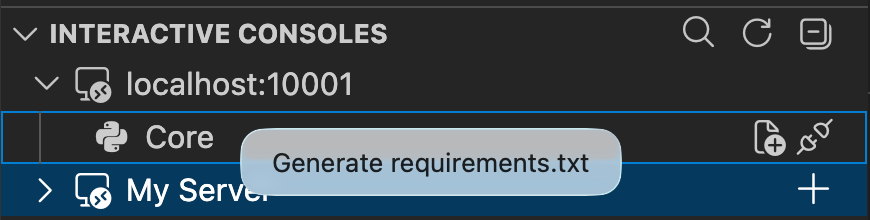
Note: Python code executed by the extension always runs on the server, while the local environment drives language features in
VS Codesuch as Intellisense. For Community, it is possible for the server to share the same environment asVS Code. For Enterprise, they will always be separate.
Managed pip Servers (Community only)
Managed pip servers are driven by the Python Environments extension (ms-python.vscode-python-envs). If it isn't already installed, installing the Deephaven extension installs it too. The Deephaven server is started in whichever environment that extension has selected, so any environment manager it supports works — venv, uv, conda, and others. If the extension is disabled, new managed servers can't be started, but already running ones stay listed under the Managed servers node so they can be stopped. The rest of the extension continues to work.
If you want to manage Deephaven servers from within the extension, install deephaven-server into the selected environment. See VS Code's Python environments docs for creating and selecting environments.
Note
The server is started with the environment's bin directory prepended to PATH rather than through a full shell activation. For conda environments, this means activate.d scripts are not run, so variables they set (e.g. JAVA_HOME from conda's openjdk package) are not available. Make sure a compatible Java is available outside of the conda environment.
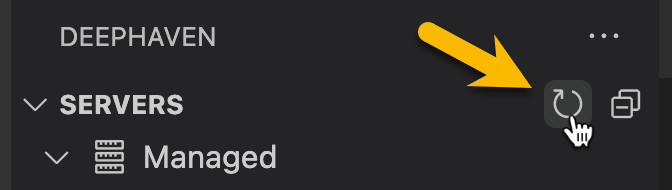
Once installed, the Managed servers node appears in the server tree panel. The extension watches for deephaven-server being installed or removed and for the selected environment changing, so the node normally updates on its own. If the node seems out of date, click the refresh button to force a re-check.
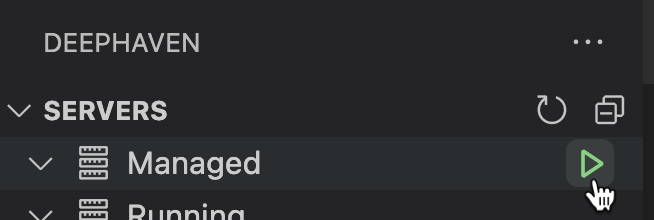
Hovering over the Managed node shows a Play button that starts a server.