Ingest CSV data into system tables
This guide demonstrates how to ingest CSV data files into Deephaven system tables, covering both command-line and UI-driven methods. For command-line operations, these instructions assume a typical Deephaven installation.
Note
If you want to read a CSV file directly into an in-memory Deephaven table for interactive analysis, see the Core guide on reading CSV data into tables.
Schema preparation
Before ingesting any CSV data, whether via the command line or the UI, a schema defining the data's structure must be generated and deployed. This schema is crucial for Deephaven to correctly interpret and store your data.
Generate a schema
The first step is to generate a schema file from a sample of your CSV data. This schema will define column names, data types, and other ingestion parameters.
See the Schema inference page for a detailed guide on generating a schema from a sample CSV file.
Deploy the schema
Once you have a schema file (e.g., /tmp/MyNamespace.MyTable.schema), you need to deploy it. The dhconfig schema import command makes this schema definition known to your Deephaven instance.
Replace /tmp/MyNamespace.MyTable.schema with the actual path to your generated schema file.
CSV import Persistent Query
Once you have deployed a schema, you can import CSV data into Deephaven using a Persistent Query (PQ) configured for CSV import. This method allows you to schedule and manage imports directly from the Deephaven UI.
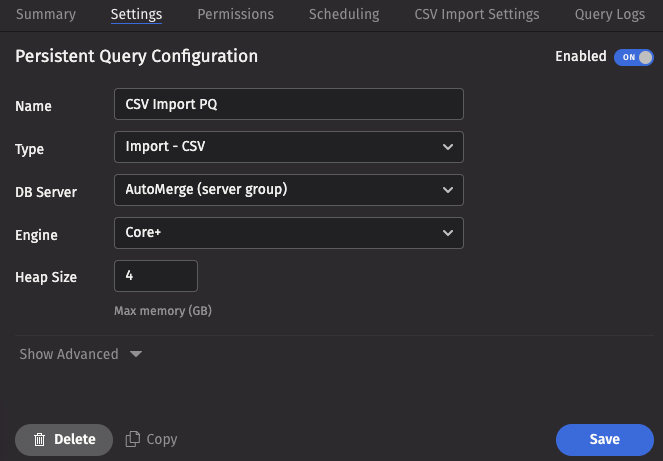
To create a CSV Import Persistent Query (PQ), click the +New button above the Query List in the Query Monitor and fill in the options.
- Name your query appropriately, as it will appear in the Query List.
- Select the type Import - CSV.
- Select an appropriate DB Server (import PQs must use a merge server).
- Choose the Engine (Core+ or Legacy).
- Select an appropriate value for Heap Size.
- Options available in the Show Advanced Options section of the panel are typically not used when importing or merging data.
This screenshot shows a CSV import PQ called CSV Import PQ using the Core+ engine.
- The Permissions tab gives the query owner the ability to authorize Admin and Viewer Groups for this query.
- The Scheduling tab provides options on when the PQ should run.
Click the CSV Import Settings tab to choose the options pertaining to importing a CSV file.
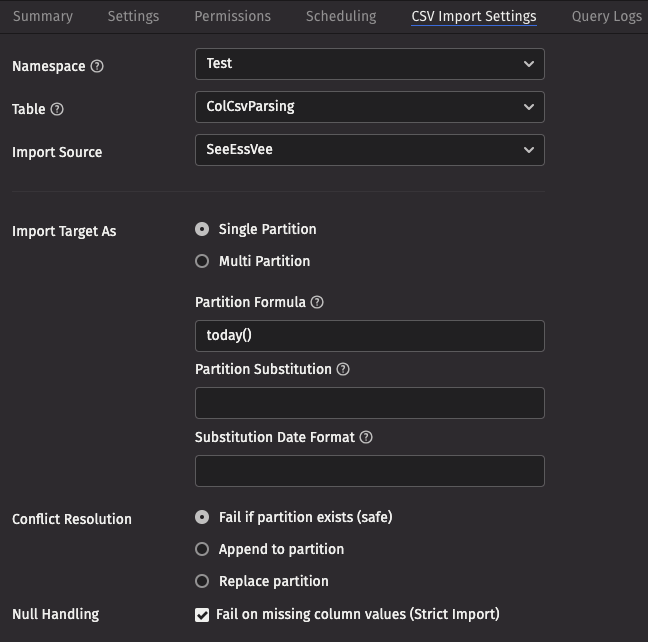
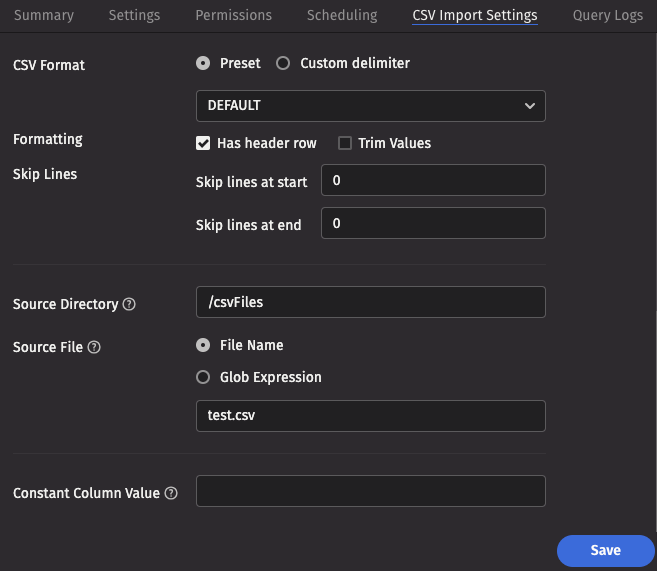
These screenshots show the top and bottom of the panel for a table called ColCsvParsing in the namespace Test, using an import source called SeeEssVee.
CSV import settings
- Namespace: The namespace into which you want to import the file.
- Table: The table into which you want to import the data.
- Import Source: The import source section of the associated schema file that specifies how source data columns will be set as Deephaven columns.
- Strict Import will fail if a file being imported has missing column values (nulls), unless those columns allow or replace the null values using a default attribute in the
ImportColumndefinition.
- Strict Import will fail if a file being imported has missing column values (nulls), unless those columns allow or replace the null values using a default attribute in the
- Output Mode: Determines what happens if data is found in the fully-specified partition for the data. The fully-specified partition includes both the internal partition (unique for the import job) and the column partition (usually the date).
- Safe - The import job will fail if existing data is found in the fully-specified partition.
- Append - Data will be appended to it if existing data is found in the fully-specified partition.
- Replace - Data will be replaced if existing data is found in the fully-specified partition. This does not replace all data for a column partition value, just the data in the fully-specified partition(s).
- Single/Multi Partition: Controls the import mode. In single-partition, all of the data is imported into a single Intraday partition. In multi-partition mode, you must specify a column in the source data that will control to which partition each row is imported.
- Single-partition configuration:
- Partition Formula: A formula that specifies the partition into which the data is imported. If a specific partition value is used, it must be surrounded by quotes. For example:
today()"2017-01-01" - Partition Substitution: A token used to substitute the determined column partition value in the source directory, source file, or source glob, to allow the dynamic determination of these fields. For example, if the partition substitution is "PARTITION_SUB", and the source directory includes "PARTITION_SUB" in its value, that PARTITION_SUB will be replaced with the partition value determined from the partition formula.
- Substitution Date Format: The date format that will be used when a Partition Substitution is used. The standard Deephaven date partition format is
yyyy-MM-dd(e.g., 2018-05-30), but this allows substitution in another format. For example, if the filename includes the date inyyyyddMMformat instead (e.g., 20183005), that could be used in the Date Substitution Format field. All the patterns from the JavaDateTimeFormatterclass are allowed.
- Partition Formula: A formula that specifies the partition into which the data is imported. If a specific partition value is used, it must be surrounded by quotes. For example:
- Multi-partition configuration:
- Import Partition Column: The name of the database column used to choose the target partition for each row (typically "Date"). There must be a corresponding Import Column present in the schema, which will indicate how to get this value from the source data.
- File Format: The format of the data in the CSV file being imported. Options include
DEFAULT,TRIM,EXCEL,TDF,MYSQL,RFC4180, andBPIPE*. - Delimiter: This can be used to specify a custom delimiter character if something other than a comma is used in the file.
- Skip Lines: The number of lines to skip before beginning parse (before header line, if any).
- Skip Footer Lines: The number of footer lines to skip at the end of the file.
- Source Directory: The path to where the CSV file is stored on the server on which the query will run.
- Source File: The name of the CSV file to import.
- Source Glob: An expression used to match multiple CSV file names.
- Constant Value: A String of data to make available as a pseudo-column to fields using the CONSTANT sourceType.
- Note: BPIPE is the format used for Bloomberg's Data License product.
Worker-scripted CSV imports
Deephaven provides tools for importing CSV files from a Deephaven Groovy script running in a Core+ worker. Compared to other methods, this permits more elaborate logic with respect to existing data. These scripts may be executed as a PQ or code studio. All imports should be performed as the dbmerge user or from a persistent query running on a merge server.
Example
The following Core+ script imports a single CSV file to a specified partition:
Instead of supplying a file location, you can also directly use an input stream created to read your file.
You can also use the fromStream method to supply the input stream.
Import API reference
The CsvImportOptions class provides a static builder method, which produces an object used to set parameters for the import. The builder returns an import object from the build method. Imports are executed via the run method and, if successful, return the number of rows imported. All other parameters and options for the import are configured via the setter methods described below. The general pattern when scripting an import is:
For further information on the Builder, see the API docs for the io.deephaven.importers.csv.CsvImportOptions.Builder class.
CSV import options
See the import settings for the further information on these fields.
| Setter Method | Type | Req? | Default | Description |
|---|---|---|---|---|
constant | String | No | N/A | A String to materialize as the source column when an ImportColumn is defined with a sourceType of CONSTANT. |
delimiter | char | No | , | Specifies a character other than the file format default as the field delimiter. If it's specified, fileFormat does not have to be specified. If set, it must be a single character. |
destinationDirectory | java.io.File | No (note 1) | N/A | The destination directory in which to write the data. |
destinationPartitions | String | No (note 1) | N/A | The destination partitions in the format <internal partition value> or <internal partition value>/<column partition value>. It is used to build the directory into which to write the files. |
fileFormat | String | No | DEFAULT | DEFAULT, EXCEL, MYSQL, RFC4180, TDF, or TRIM. See file formats for full details. If neither fileFormat nor delimiter is set, then , is used as a delimiter. |
importSource | String | No | N/A | Specific ImportSource to use (from the table schema). If not specified, the importer will use the first ImportSource block that it finds that matches the type of the import (CSV/XML/JSON/JDBC). |
inputStream | java.io.InputStream | No (note 2) | N/A | The input stream. |
intradayPartitionColumn | String | No (note 1) | N/A | Column name to use to choose which partition to import each source row. |
noHeader | boolean | No | false | True if the imported file does not include a header. |
outputMode | ImportOutputMode | String | No | SAFE | Enumeration with the following options: ImportOutputMode.SAFE | ImportOutputMode.REPLACE | ImportOutputMode.APPEND. May also be specified as String (e.g.,"SAFE"/"REPLACE"/"APPEND"). |
partitionFormula | String | No | N/A | The partitioning formula. |
partitionSubstitution | String | No | N/A | The partition substitution. |
skipFooterLines | int | No | 0 | Number of footer lines to be skipped at the end of files being read. |
skipLines | int | No | 0 | Number of lines to skip before beginning parse (before header line, if any). |
sourceDirectory | String | No (note 2) | N/A | Directory from which to read source file(s). |
sourceFile | String | No (note 2) | N/A | Source file name (either full path or relative to specified source directory). |
sourceGlob | String | No (note 2) | N/A | Source file(s) wildcard expression. |
strict | boolean | No | true | If true, allows target columns that are missing from the source to remain null, and will allow import to continue when data conversions fail. In most cases, this should be set to false only when developing the import process for a new data source. |
substitutionDateFormat | String | No | N/A | The substitution date format. |
trim | boolean | No | false | Whether to trim whitespace from field values. |
Notes
intradayPartitionColumn,destinationDirectory, anddestinationPartitionsspecify where to write the data.- Either
destinationDirectoryordestinationPartitionscan be specified but not both. - If
destinationDirectoryis set, ordestinationPartitionsspecifies both the internal and column partitions, thenintradayPartitionColumncannot be set. - If
destinationPartitionsis set and specifies only the internal partition, thenintradayPartitionColumnmust specify the partitioning column.
- Either
inputStream,sourceDirectory,sourceFileandsourceGlobdetermine the sources used to perform the import.- If
inputStreamis provided, this stream is used to read the CSV data. In this casesourceDiretory,sourceFile, andsourceGlobcannot be specified. - If
inputStreamis not specified, then eithersourceFileorsourceGlobmust be specified, but not both. - If
sourceDirectoryis not provided butsourceFileis, thensourceFileis used as a fully qualified file name. - If
sourceDirectoryandsourceFileare both provided, thensourceFileis relative tosourceDirectoryand can include subdirectories. - If
sourceGlobis provided, thensourceDirectorymust provide the directory in which to look for files.
- If
File formats
Five common formats are supported based on the original Apache CSV parser.
DEFAULT– default format if none is specified:- Comma-separated field values.
- Newline row terminators.
- Double-quotes around field values that contain embedded commas, newline characters, or double-quotes.
- Does not trim spaces around quoted or non-quoted values.
- Ignore empty lines.
EXCEL– The Microsoft Excel CSV format. This is similar toDEFAULTbut doesn't ignore empty lines.MYSQL– The MySQL CSV format.- Tab characters as delimiters.
nullas the quote character."\\N"as the null value.- Does not ignore empty lines.
RFC4180– IETF RFC 4180 MIME text/csv format. This is similar toDEFAULTbut doesn't ignore empty lines.TDF– Tab-delimited format. This is similar toDEFAULTbut uses tab characters as delimiters and trims spaces around non-quoted values.TRIM- Similar toDEFAULT, but will trim all white space around values, both within and outside quoted values.
Command-line import
Warning
Command-line CSV imports with iris_exec are deprecated and will be removed in the release after Grizzly Plus.
With a schema prepared and deployed, you can ingest CSV data using the iris_exec csv_import command. This tool is part of the Deephaven installation and is typically found in /usr/illumon/latest/bin/.
CSV ingestion jobs can be performed directly from the command line, using the iris_exec tool.
General syntax
The iris_exec csv_import command follows this general structure. Arguments before the -- (double dash) are launch arguments for the iris_exec utility itself, while arguments after the -- are specific to the csv_import operation.
It's common to run this command as the dbmerge user, especially when writing to Deephaven's data directories.
Example command
This example demonstrates ingesting a CSV file named trades.csv located in /data/incoming/ into the TradeData table within the MarketOps namespace. The data is targeted for the 2024-07-15 partition, managed under the prod_importer internal partition name.
CSV importer arguments
The CSV importer takes the following arguments:
| Argument | Description |
|---|---|
Destination Specification:
| Specifies the target location for the imported data. One of the following methods must be used:
|
-ns or --namespace <namespace> | (Required) Namespace in which to find the target table. |
-tn or --tableName <name> | (Required) Name of the target table. |
-fd or --delimiter <delimiter character> | Field Delimiter (Optional). Allows specification of a character other than the file format default as the field delimiter. If delimiter is specified, fileFormat is ignored. This must be a single character. |
-ff or --fileFormat <format name> | (Optional) The Apache Commons CSV parser is used to parse the file itself. Five common formats are supported:
|
-om or --outputMode <import behavior> | (Optional):
|
-rc or --relaxedChecking <TRUE or FALSE> | (Optional) Defaults to FALSE. If TRUE, will allow target columns that are missing from the source CSV to remain null, and will allow import to continue when data conversions fail. In most cases, this should be set to TRUE only when developing the import process for a new data source. If TRUE, conversion failures for Boolean columns will be treated as FALSE if the string value is not recognized as TRUE. |
Source Specification:
| Defines the source CSV file(s). If none of these are provided, the system attempts a multi-file import. Options include:
|
-sn or --sourceName <ImportSource name> | Specific ImportSource to use. If not specified, the importer will use the first ImportSource block that it finds that matches the type of the import (CSV/XML/JSON/JDBC). |
-tr | Similar to the TRIM file format, but adds leading/trailing whitespace trimming to any format. So, for a comma-delimited file with extra whitespace, -ff TRIM would be sufficient, but for a file using something other than a comma as its delimiter, the -tr option would be used in addition to -ff or -fd. |
-cv or --constantColumnValue <constant column value> | A literal value to use for the import column with sourceType="CONSTANT", if the destination schema requires it. |
Warning
After completing a CSV import, you must run a rescan command for the imported data to become available in Deephaven. The Data Import Server (DIS) will not automatically detect the new data.
Run this command to rescan a specific table:
For example, to rescan the TradeData table in the MarketOps namespace:
See the Data control tool rescan documentation for more details.
Handling Boolean Values
One special case when ingesting CSV data is columns in the target table with a type of Boolean.
- By default, the CSV importer will attempt to interpret string data from the source CSV with
0,F,f, or any case offalse, being written as a Booleanfalse. - Similarly,
1,T,t, or any case oftruewould be a Booleantrue. - Any other value results in a conversion failure. This failure may be continuable if a default value is set for the column or if the
relaxedCheckingargument isTRUE. (IfrelaxedCheckingisTRUEand the conversion is for a Boolean column, unrecognized values are treated asFALSE, as noted in the argument's description.) - To convert from other representations of true/false (e.g., from foreign language strings), a formula or transform would be needed, along with a
sourceType="String"to ensure the reading of the data from the CSV field is handled correctly.