Notebooks
Notebooks allow you to develop query components, stage draft queries, or simply store notes. Think of a notebook as a sandbox in which you can develop, refine, and easily execute queries in Deephaven.
Note
Notebooks are not stored as files on disk. They are stored in the DbInternal.WorkspaceData internal table and can be managed outside the UI using the workspace_data_tool.
You can add notebooks to your workspace via the File Explorer or the PQ Explorer in the Code Studio.
File Explorer
Find the File Explorer tab at the top right of the Code Studio. Either select New notebook to create a new notebook or Import to open an existing notebook from your local computer:
The notebook is now ready for use. The file name extension reflects the programming language of your current session.
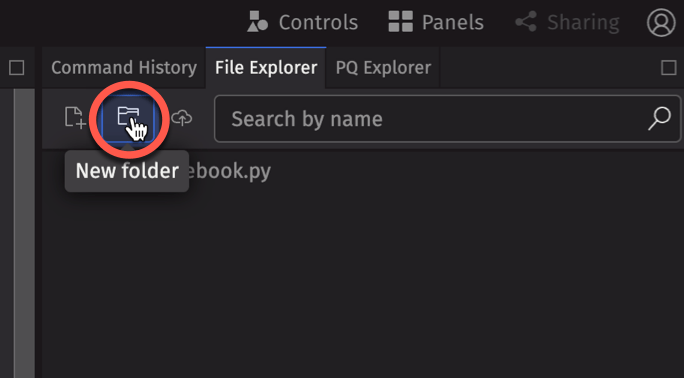
You can also create folders to store your notebooks using the New folder button:
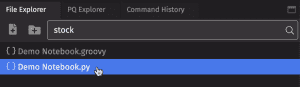
The File Explorer displays a list of saved notebooks and user folders. You can search for notebooks by content. In the example below, the File Explorer will show any notebooks that contain "stock" in the file. To open an existing notebook, highlight and double-click its name.
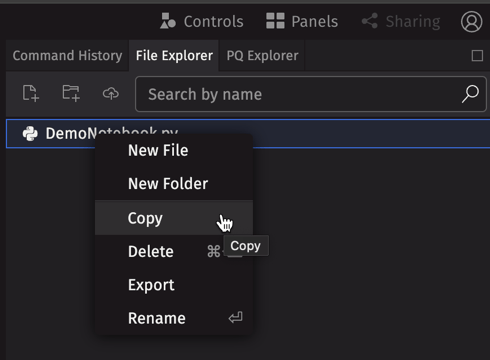
Right-click any item to open the File Explorer context menu with options to create new files or folders, delete or rename existing files, and copy the content of a notebook file:
You can also download notebooks to your local computer:
- From the Notebook toolbar, click the Export button to download that notebook.
- From the File Explorer, select one or more individual notebooks or folders, right-click, and choose Export.
PQ Explorer
The PQ Explorer tab at the right of the Code Studio lists all the Persistent Queries available to you, as well as some status information.
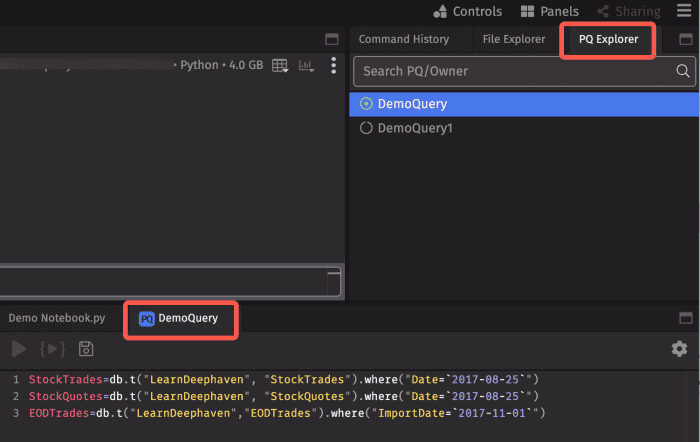
As shown above, the green circle indicates that the Persistent Query named "DemoQuery" is active, while "DemoQuery1" is not. Selecting any query automatically opens its script in a new notebook panel. When a notebook generated from the PQ Explorer is saved, any edits are automatically applied to that Persistent Query script and reflected in the Script tab of the Persistent Query Configuration Editor.
Notebook toolbar
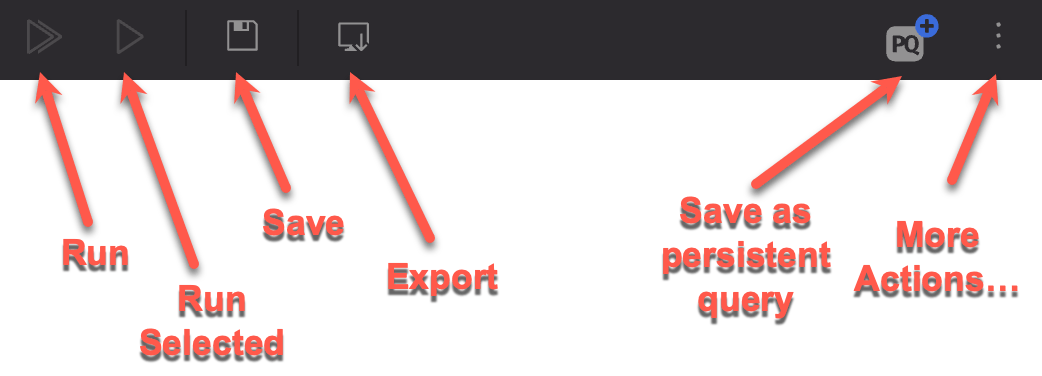
Use the buttons in the notebook toolbar at the top of the Notebook panel to act on content you've entered.
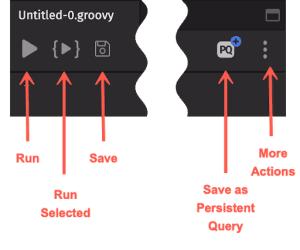
- Run — Automatically copies all of the content in the Notebook window and then executes it in the Console.
- Run Selected — Copies the content you have highlighted in the Notebook window and then executes those selected lines in the Console. This option runs the entire selected line (or lines), even if you have highlighted only a portion of the line.
- Save — Saves the notebook content to workspace data (stored in
DbInternal.WorkspaceData, not on disk). When Save is clicked for the first time, the Save dialog prompts the user to enter a filename and choose where to save the notebook in the workspace/File Explorer. Depending on the notebook's content, Deephaven saves it as a.txt,Groovy, orPythonfile. Clicking Save again updates the existing saved notebook with the current content. The name shown on the notebook tab updates to match the filename. A blue circle in the notebook's tab indicates unsaved changes. - Save as Persistent Query — Opens a pop-up version of the Persistent Query Configuration Editor, with the Settings, Scheduling, and Permissions tabs. Once you configure and save your selections, a new Persistent Query is created in the Query Monitor that contains the text of the notebook in the Script tab.
- More Actions — Copy, Rename, or Delete your file from this pop-up menu.
Notebook context menu
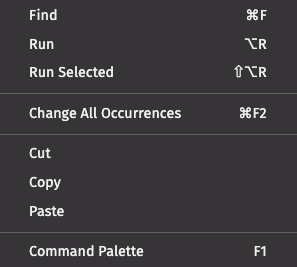
Right-clicking within the body of the Notebook panel opens a context menu with the following options:
- Find — Opens a search box to find text within the Notebook window. The search box can be set to case-sensitive or case-insensitive, and will highlight all occurrences of the text you enter.
- Run — Automatically copies all the content in the Notebook window and then executes it in the Console.
- Run Selected — Copies the content you have highlighted in the Notebook window and then executes those selected lines in the Console. This option runs the entire selected line (or lines), even if you have highlighted only a portion of the line.
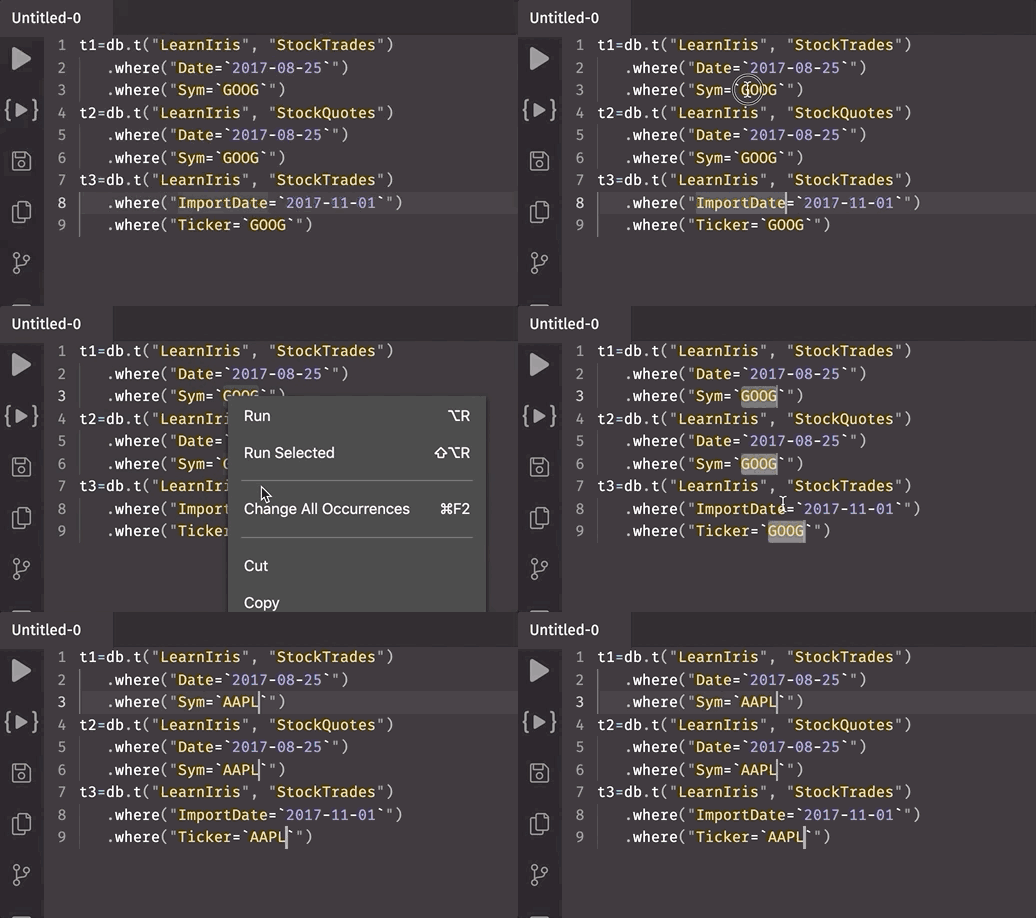
- Change All Occurrences — Highlights all other occurrences of the selected text within the Notebook window, and when the selected text is edited, all occurrences change simultaneously.
- Cut — Deletes the content you have highlighted in the Notebook window and saves it to the clipboard.
- Copy — Copies the content you have highlighted in the Notebook window and saves it to the clipboard.
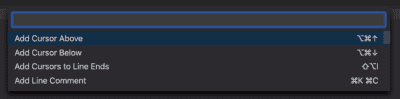
- Command Palette — Opens the Command Palette, which provides an exhaustive list of commands for editing, including keyboard shortcuts for the most common operations.