Display query creation UI in an Inline Frame
You can embed Deephaven’s query creation UI in an iframe, allowing you to add interactive console query capabilities to your custom web applications. By using the Deephaven JS API alongside the iframe, you can integrate data exploration features directly into your own apps. This guide outlines the steps required to set up and communicate with the embedded query UI.
- Load the JS API from the
/irisapi/irisapi.nocache.jspath of the target Deephaven server. - Log in to the server using the JS API and get a refresh token.
- Add an iframe to the page that loads the
/iriside/iframecontent/createworkerpath on the target Deephaven server. - Handle
postMessagecommunication between the current Window and the iframe.
Example App
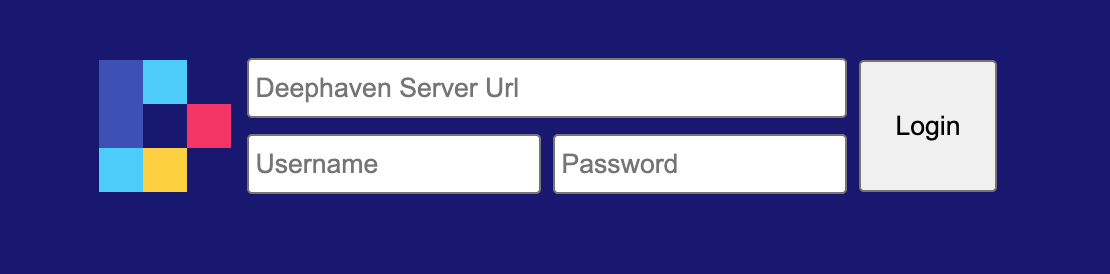
The following example app presents a custom login page that allows the user to provide a Deephaven server URL and to log in with a username and password.
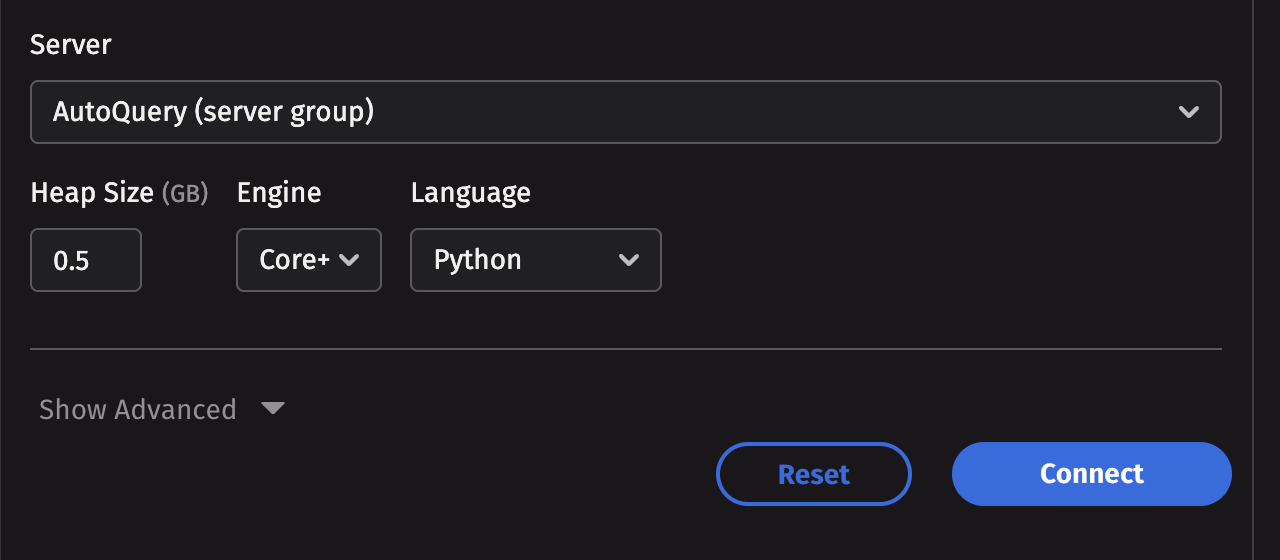
Upon successful login, you will be redirected to a query creation form where you can create an interactive console query.
Full Code Example
Download the JS API Dynamically
Once you provide the server URL to the app, it will download the JS API by appending a script tag to the DOM and waiting for its onload event:
Login and get a refresh token
Once the JS API has been loaded, you need to get a refresh token that the iframe can use:
- Create a JS API client.
- Register to the
EVENT_REFRESH_TOKEN_UPDATEDevent. - Log in to the client with the username / password provided by the user.
- Receive the refresh token provided by the next
EVENT_REFRESH_TOKEN_UPDATEDevent.
The example app wraps all of this in a Promise that resolves when the token is received:
Load the iframe
Once a refresh token is received, the app will load an iframe pointing to the Deephaven server's iriside/iframecontent/createworker path.
Handle post messages
Once the iframe has loaded, Deephaven will initiate communication with the containing page via postMessage APIs:
- Deephaven will request a refresh token by sending an
io.deephaven.message.IframeContent.authTokenRequestmessage to the parent Window. - The parent Window will respond by sending a message back to the iframe with the same ID as the request and whose payload contains the refresh token.
- Deephaven will authenticate with the refresh token. If successful, it will request initialization settings for the UI by sending an
io.deephaven.message.IframeContent.settingsRequestmessage. - The parent window must respond to the settings request, optionally overriding UI settings.
Once the entire sequence of messages is successful, you should be presented with a form that can be used to create interactive queries. Select your desired settings and click Connect. Once the query is created, Deephaven will send an io.deephaven.message.IframeContent.workerCreated message to the parent Window containing the serial ID for the query. The example code will write this to the console.log.
Settings API
The message passed to the iframe in response to the io.deephaven.message.IframeContent.settingsRequest message is required to complete the UI initialization.
While the minimal required payload is an empty object, you will likely want to configure the UI. The payload supports the following optional settings:
newWorkerName- the name of the interactive query that will be created. Note that this needs to be unique every time it is provided. In the example, it is generated asIframeContentTester - Create Worker - ${crypto.randomUUID()}isLegacyWorkerKindSupported- determines if legacy worker types are included in the Engine dropdown. Defaults to trueshowHeader- whether to show theNew Console Connectionheader. Defaults to true for legacy reasons, but typically should be set tofalsesettings- can be used to define the default values of form fields in the query creation UI. These correspond to the payload sent byio.deephaven.message.IframeContent.settingsChangedmessages any time the UI fields are updated by a user.