Set date-time format
You can change how the UI displays date-time values (Instant and ZonedDateTime columns) in two places:
- The Settings menu sets the default time zone, the default format, and formatting rules for every table you view.
- A column's header menu changes the format of one column in one table.
These settings change how values appear, not the underlying data. The UI saves them in your browser, so they don't affect other users.
To change the defaults for every user, set them in the server configuration, as described in Web defaults. A setting that a user has already changed in their own browser still overrides the server default.
Settings menu
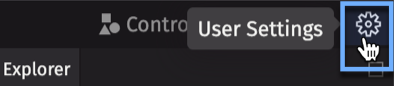
The Settings menu sets the date-time display for every table you view. To open it, select the gear icon (User Settings) at the top right of the UI:
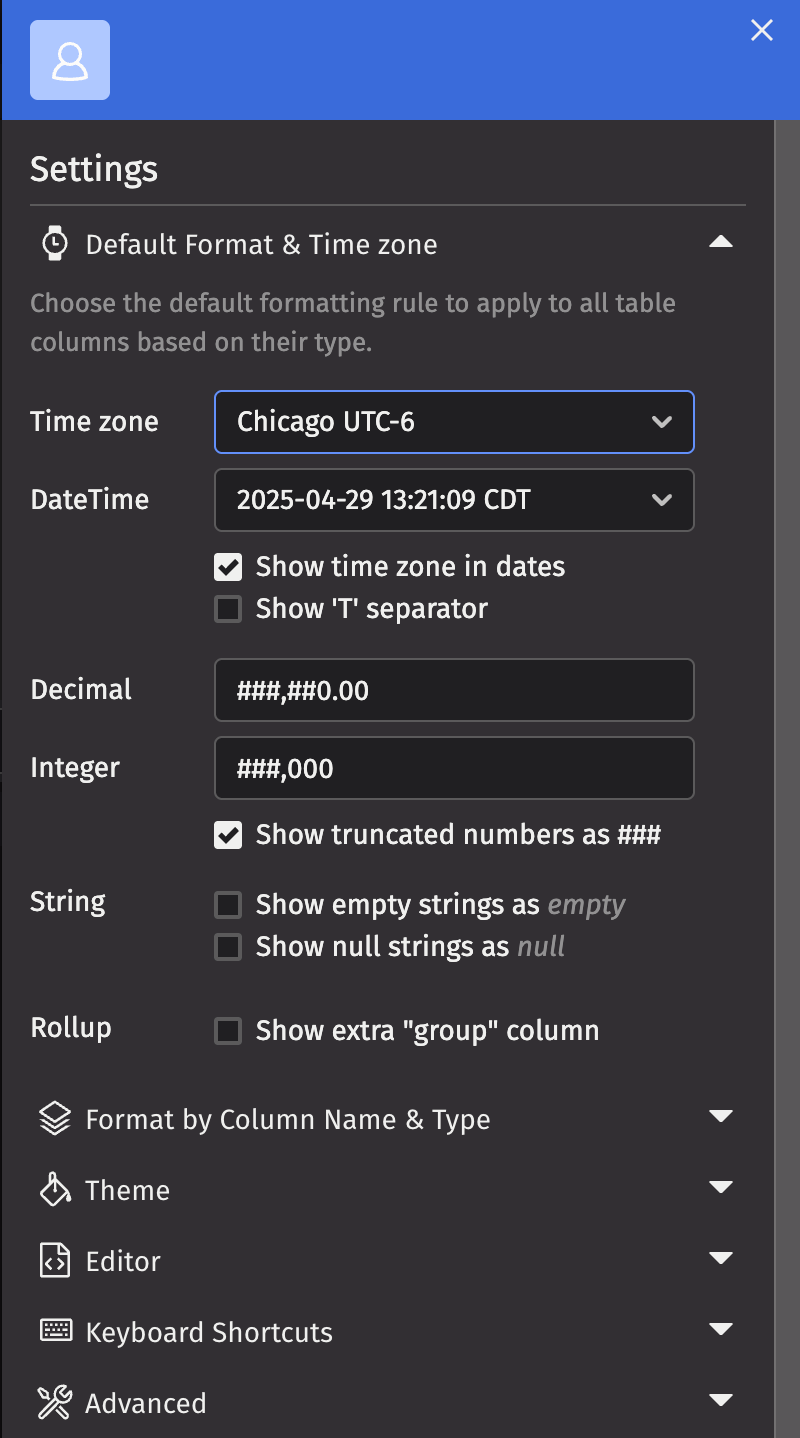
The Settings menu has two sections for date-time formatting:
- Default Format & Time zone contains the Time zone and DateTime options, along with defaults for numbers and strings.
- Format by Column Name & Type contains the formatting rules.
Time zone
The Time zone option in the Settings menu sets the default time zone for all tables you view in the UI. Tables display their date-time values in this time zone. The UI also uses this time zone to interpret date-time values you type into a table's filters. Unless an administrator sets a different default, the UI uses America/New_York.
This setting does not change the time zone the Deephaven engine uses. To change that, see How do I set the default timezone?.
DateTime
The DateTime option in the Settings menu sets the default format that table columns use to display date-time values. The two checkboxes below it apply to every date-time format in your tables, including formatting rules and formats you choose in a column header menu:
- Show time zone in dates adds the time zone to each value.
- Show 'T' separator puts a
Tbetween the date and time portions of each value.
By default, the UI uses the yyyy-MM-dd HH:mm:ss.SSS format with the T separator on and the time zone off, for example 2021-09-17T10:50:27.706.
Format by column name and type
The Settings menu also lets you add formatting rules. A formatting rule matches columns by name and type. It sets the format that those columns display in every table you view in the UI. Each rule pairs an exact column name with one of three column types: DateTime, Decimal, or Integer.
In this example, we create a rule for all columns named Timestamp with the DateTime type:
- In the Settings menu, expand Format by Column Name & Type.
- Select Add New Rule.
- In Column Name, enter
Timestamp. - In Column Type, select DateTime.
- In Formatting Rule, select a format.
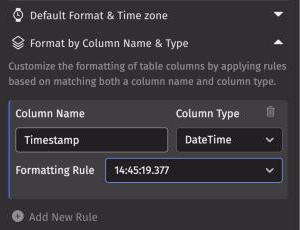
To remove a rule, select the trash can icon (Delete) to the right of the rule's Column Type label.
Column header menu
To change the date-time format of one column in one table, use its column header menu. To format a column wherever it appears, add a formatting rule instead.
To use the column header menu:
- Right-click the column header.
- Select Date/Time Format.
- Select a format. Each option shows the current time in that format.
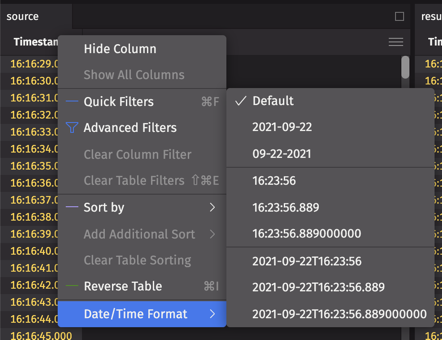
To go back to the format from your settings, select Default in the same menu.
When more than one setting applies to a column, the most specific one wins. A format you choose in the column header menu overrides a formatting rule for that column. A formatting rule overrides the DateTime default.