Add clickable links to a Deephaven table
Any string column in a Deephaven table can hold clickable links. The Deephaven web UI turns the URLs in these columns into links. You don't need to turn on a setting.
- Any URL that starts with
http://orhttps://becomes a link, wherever it appears in the string. - Email addresses, such as
user@example.com, also become links.
This guide shows how links appear in a table you create from code and in an input table.
Add links to a table from code
Let's create a table with a string column that contains URLs.
The UI renders a URL as a link only when it includes the scheme, http:// or https://. A link can appear inside other text, and one cell can hold more than one link. In the result table:
https://deephaven.io/is a link.link: https://deephaven.io/contains a link after the label text.deephaven.io (invalid link)is plain text, becausedeephaven.iohas no scheme.- The last cell contains two separate links.
Here's how clicking works in a cell that contains a link:
- Click a web link to open it in a new browser tab. Click an email address to open it in your default email app.
- To select the cell without opening the link, click an empty part of the cell, or click the link and hold the mouse button for one second.
- If the cell is editable, holding the link for one second also starts editing the cell.
Add links to an input table
An input table lets you type values directly into its cells. Strings you type into an input table follow the same rule as strings in any other column: only URLs that start with http:// or https:// become links.
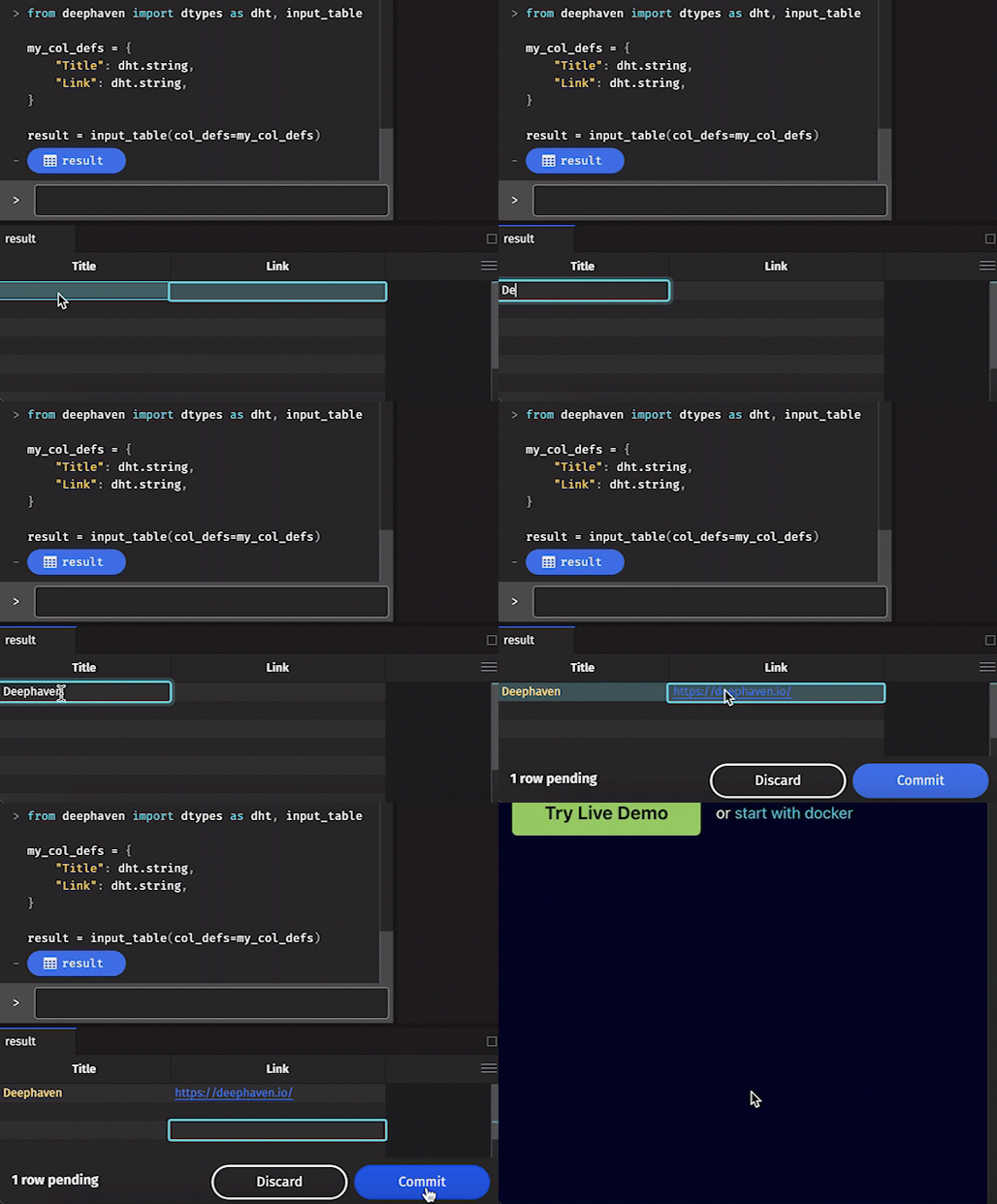
Let's create an empty input table with two string columns, Title and Link.
Type a link into the input table
To add a link, type or paste a URL into a cell, then click Commit to save the row.
- To edit a link in a row you haven't committed yet, click the link and hold the mouse button for one second. A normal click opens the link instead.
- After you commit a row, you can't edit it. This input table is append-only because the example doesn't pass
key_cols.
To edit links after you commit them, create a keyed input table by passing key_cols to input_table, for example key_cols="Title". You can then edit the non-key columns, such as Link, at any time.
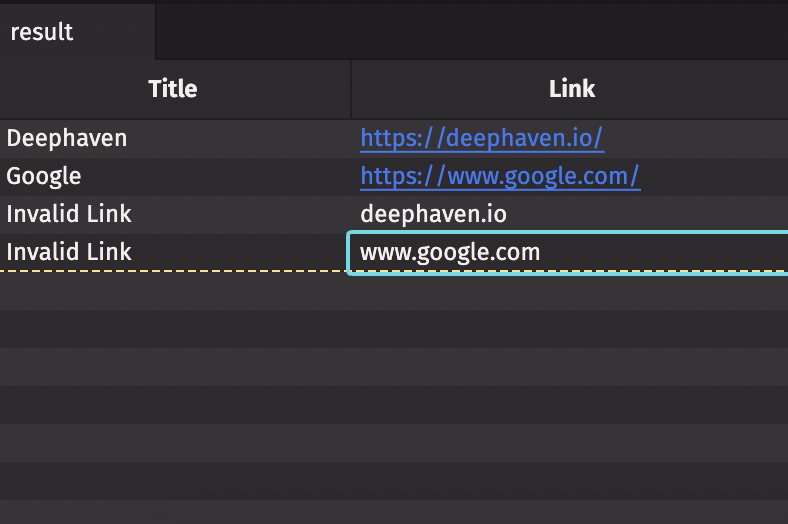
As in the first example, the UI doesn't convert values without a scheme, such as deephaven.io or www.google.com, to links: