SAML authentication
Security Assertion Markup Language (SAML) can be used for external authentication of users for both the Deephaven Web interface and the Deephaven Classic (Java/Swing) interface.
SAML is an open standard whereby third-party Identity Providers such as Google, Okta, OneLogin, and others, can validate the identity of a user requesting to log on to a Deephaven system. The main benefits of SAML authentication are single sign-on to multiple services, including Deephaven, and the possibility to manage various forms of two-factor authentication.
There are two systems involved in authentication using SAML: the Identity Provider (IdP) and the Service Provider (SP). The Identity Provider is responsible for authenticating a user and providing evidence of that user's identity in the form of a SAML assertion. Google, Okta, and other accounts management solutions that support SAML 2.0 can act as Identity Providers for Deephaven. The other side of the configuration is the Service Provider, which makes services available to authenticated users. In the context of this document, the Service Provider is the Deephaven installation, with the Service Provider endpoint being a component of the Deephaven authentication server.
Note
The authenticated user is the user that authenticated to the system to initiate the operation. The effective user is the user that Deephaven enforces permission checks for.
A simple example is the "Operate as" login, where the user who logs in (via password, SAML, etc.) is the Authenticated User, and the user they are operating as is the Effective User.
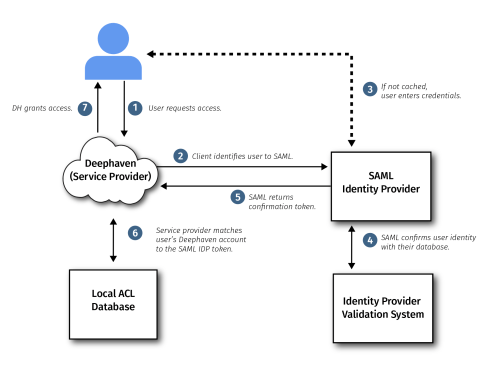
Both systems need to be configured for SAML authentication: the Identity Provider so it will accept authentication requests and return responses in the expected format from the specific Service Provider installation, and the Service Provider so it will know what Identity Provider instance to work with and will trust assertions received from it.
Once both systems are properly configured, users attempting to log in to Deephaven can choose to authenticate with the external Identity Provider. If they do so, they will be redirected to a login process managed by the Identity Provider. Upon completion of that process, the result will be sent as a SAML-formatted assertion message to the Deephaven authentication server. If the login was successful, the authentication server will grant the user the rights associated with the user name indicated in the assertion.
For a user to access Deephaven with SAML authentication, the Identity Provider administrator must create a login in the Identity Provider system and then grant the user access to the Deephaven application there. In addition, a Deephaven administrator must generally create a Deephaven login to match the user's Identity Provider login name, and grant the user's Deephaven account any needed privileges with the Deephaven system — unless group synchronization is enabled, in which case Deephaven creates the user's login automatically on first successful login.
Configure Deephaven to use SAML Authentication
To configure the authentication server to present the option of SAML authentication, two sets of properties need to be added to the iris-environment.prop properties: one for front-end configuration and one for server-level configuration.
Note
If you previously configured SAML using the legacy SamlAuth RPM plugin, uninstall that RPM before configuring SAML through properties to avoid conflicts.
Configure front-end
The front-end must be configured to properly utilize the server-level module. The front-end configuration is defined within the following stanza in the iris-environment.prop file. These properties are used to enable the SAML login option within the Deephaven console and web UI:
Enable SAML-based auth requests
The second set is to enable the authentication server to accept and handle SAML-based authentication requests. This set of properties should be added to the authentication server stanza:
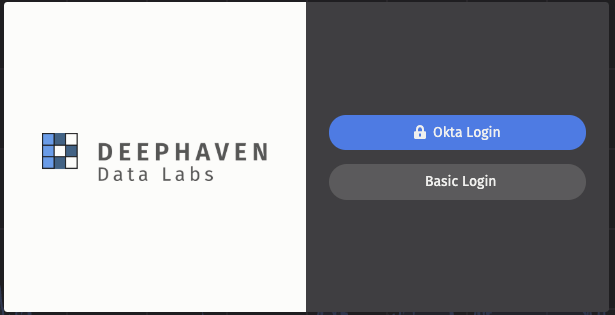
When SAML is configured, the Deephaven login screen will look similar to the following:
Example configuration
The Deephaven SAML integration leverages the OneLogin java-saml toolkit. For additional details on the available properties, see the OneLogin Java-SAML Toolkit Configuration. Please note that the "onelogin.saml." properties required by this toolkit are identified in Deephaven as "authentication.samlauth."; these properties will be copied to the appropriate property-names during startup.
Minimal Okta-IdP Example
Minimal Google-IdP Example
Additional Settings
The previous sections provide minimal configurations for integrating with some common public identity providers. Many more settings are available, which we detail here:
SAML over Envoy
Once the Envoy Proxy is properly configured on the system, it is possible to use SAML authentication through the proxy by leveraging Extra Envoy XDS routes. In addition to changing the target port from 9032 to the appropriate Envoy port in all of the above properties, it is also required that the IdP's ACS be redirected to the Envoy port. That is, the IdP should always be configured to use the URL identified by authentication.samlauth.sp.assertion_consumer_service.url. The following should be added to the configuration so that appropriate routing is done for the SAML URLs.
Multiple Deephaven Instances with one Identity Provider
In the case that multiple Deephaven instances authenticate as a single application within a single IdP, the host identified by the IdP as the SP can be able to redirect the traffic to the originating Deephaven instance by leveraging the RelayState. This architecture requires that the host defined as the SP be available and have an authentication server with the SAML authentication module configured. The following non-standard configuration settings are required for the SAML message to be successfully processed by the originating authentication server;
Group Synchronization
SAML Identity providers can be configured to include a list of groups in the identity assertion that is sent to Deephaven. To configure Deephaven to read the group attributes, set the authentication.samlauth.groupsattribute to the name of the group attribute. When this property is set, the Deephaven compares the groups from the identity assertion with the groups currently configured for the user in Deephaven. If the user does not exist in the Deephaven ACL database, then the user is created. All Deephaven users are added to two groups: (1) "allusers" and (2) a group that matches their username. Without any additional configuration, Deephaven assumes that the group names from the identity provider are identical to those in the Deephaven system.
A set of properties containing a comma-separated list of group names allows you control over how groups are synchronized:
- Groups that are in the
authentication.samlauth.sync.ignoregroups.idplist are ignored when adding new groups to the Deephaven user. For example, you may want to exclude an "Everyone" group that is included by default with your provider (as Deephaven already includes an "allusers" group). - Groups that are in the
authentication.samlauth.sync.ignoregroups.dhlist are not deleted by Deephaven. This allows you to have some groups that are managed solely within Deephaven. - Each identity provider group can be mapped to one or more Deephaven groups with properties of the form
authentication.samlauth.sync.mapgroup.<idp group name>=<dh group name>. This permits you to map identity provider groups to special Deephaven groups like "iris-acleditors" or "iris-superusers".
Some identity providers omit the group attribute entirely from the identity assertion when a user belongs to no groups, rather than sending the attribute with no values. By default (authentication.samlauth.groupsattribute.required=true), Deephaven rejects such an assertion and the login fails. Set authentication.samlauth.groupsattribute.required=false to accept it and treat the user as having no groups, which is handled identically to an attribute that is present but empty: the user is synchronized into "allusers" and a group matching their username, and is created if they do not already exist.
Note
Consult the documentation of your Identity provider to configure sending group information.
Disabling password authentication
After enabling SAML authentication, password authentication may be disabled by setting the following property in iris-environment.prop and restarting the authentication server:
When set to false, the authentication server does not accept any password authentication. You must use alternative methods like SAML or Deephaven challenge response authentication with private keys.
The password authentication option on the web front-end may be removed by adding the following property into the existing client configuration list and reloading the web API service:
The password authentication panel may be removed from the Swing front-end by adding the following property and reloading the web API service: