Streaming binary logs
This section of the crash course introduces Deephaven's binary logs (often referred to as binlogs), which are integral to handling intraday data streams within the Deephaven ecosystem.
Binlogs are specialized files designed to manage real-time or near-real-time data, particularly ticking data — information that updates continuously throughout the day. These logs provide an efficient mechanism for ingesting and processing high-frequency data.
Written in a proprietary, row-oriented binary format, binlogs are optimized for Deephaven’s performance, enabling rapid data ingestion and processing. This makes them ideal for scenarios that require fast, large-volume data throughput.
Here’s how the data ingestion process works:
- An application receives data and writes it to binlogs.
- A process called the tailer reads these files and sends them to the Data Import Server, where they are stored persistently within the Deephaven installation.
- From there, they are available to the system's users through the IDE and through clients such as the Python client.
How intraday data is partitioned
Intraday data is systematically partitioned to optimize storage and retrieval efficiency. Deephaven's partitioning strategy involves two key components:
- Column partition
- One column is chosen to partition the data on disk, determining the primary user-visible level of data segmentation. This is known as the column partition.
- Typically, the column partition is a
Datecolumn, as dates naturally distinguish intraday data from historical data.
- Internal partition
- The internal partition is simply used to separate data sources and is not crucial to this discussion.
Overview
This guide provides end-to-end binary-logging examples using simple Java applications. The basic process consists of these steps:
- Define and deploy the schemas.
- Generate the Deephaven logger classes from these schemas.
- Create the logger applications to log some data for these tables.
- Compile the logger applications.
- Run the logger applications.
- Query the tables to see the logged data.
- Merge the data into historical.
- Validate the data and remove it from intraday.
The steps in this guide are performed on a Deephaven server. If your installation has multiple nodes, use the infrastructure node (the one that runs a configuration server).
Note
To follow along, you'll need an account with access to the Deephaven installation:
The steps below require access to a Deephaven administrative user.
- Deploy the schemas, making them available to the Deephaven installation.
- Make the compiled code available to the Deephaven installation
- Run the example programs
There are three examples, each illustrating a way to log intraday data.
- The single-partition example always logs data using a single, pre-defined column partition value.
- The date-based example dynamically determines the column partition value using a timestamp in the logged data.
- The function-based example dynamically determines the column partition value using a function operating on the logged data.
Define and deploy the schemas
When binary logs are used for data ingestion, the first step is to define a schema. This example provides two simple schemas.
Note
While there are tools that support schema discovery and creation, they are beyond the scope of this example.
To create the schemas, you need a temporary directory to hold the schema files.
Single-partition schema
The single-partition schema always writes to a single column partition value.
Single-partition schema
namespace="ExampleNamespace"andname="LoggingSinglePartition"define the table's namespace and table name.<Column name="Date" dataType="String" columnType="Partitioning"/>sets the column calledDateas the partitioning column.- The
LogFormatelement indicates that we're defining loggers and listeners and that they'll use formatversion="1". The version allows multiple loggers and listeners to be defined for the same table, which can be helpful when tables are changing formats. - The
Loggerelement defines the binary logger details and is used to generate the logger class.class="io.deephaven.crashcourse.dynamic.gen.LoggingSinglePartitionFormat1Logger"defines the generated logger's package and class name.- There is no information about the column partitioning since that will be generated by the logging program.
Copy the single-partition-based schema to the server or paste it into a file there.
Date-based schema
The date-based schema uses dynamic partitioning to determine the column partition value for each logged row.
Date-based schema
namespace="ExampleNamespace"andname="LoggingDate"define the table's namespace and table name.<Column name="Date" dataType="String" columnType="Partitioning"/>sets the column calledDateas the partitioning column. This column's value will be dynamically derived for each row.- The
LogFormatelement indicates that we're defining loggers and listeners and that they'll use formatversion="1". The version allows multiple loggers and listeners to be defined for the same table, which can be helpful when tables are changing formats. - The
Loggerelement defines the binary logger details and is used to generate the logger class.class="io.deephaven.crashcourse.dynamic.gen.LoggingDateFormat1Logger"defines the generated logger's package and class name.timePartitionColumn="Timestamp"specifies that theTimestampcolumn's values will be used to calculate theDatecolumn's value for each row.
- The
Validatorsection is explained in the validation section below.
Copy the date-based schema to the server or paste it into a file there.
Function-based schema
The function-based schema uses a function to determine the column partition value for each logged row.
Function-based schema
namespace="ExampleNamespace"andname="LoggingFunction"define the table's namespace and table name.<Column name="MyPartition" dataType="String" columnType="Partitioning"/>sets the column calledMyPartitionas the partitioning column. This needs to be calculated for each row, as explained in the Java class. This is an advanced use case, as this table isn't partitioned byDateand doesn't include any date-related columns.- The
LogFormatelement indicates that we're defining loggers and listeners and that they'll use formatversion="1". The version allows multiple loggers and listeners to be defined for the same table, which can be helpful when tables are changing formats. - The
Loggerelement defines the binary logger details and is used to generate the logger class.class="io.deephaven.crashcourse.dynamic.gen.LoggingFunctionFormat1Logger"defines the generated logger's package and class name.columnPartitionArgument="MyPartition"adds a parameter to the generated class's log call to specify the column partition value, which is used for theMyPartitioncolumn.
Copy the function-based schema to the server or paste it into a file there.
Deploy the schemas
Deploy the schemas, making them available to the Deephaven system. This requires access to an operating system account with Deephaven administrative privileges, by default irisadmin. The following command will deploy all the schemas you've created for the ExampleNamespace namespace in the temporary directory, overwriting them if they already exist.
Generate the logger classes
We'll use dhctl to generate the Deephaven logger classes from the schemas. The logger classes are used by the application to log data to binary log files, while listener classes will be generated as needed (not with this command) by the Deephaven Data Import Server to load the data.
First, create a local directory to contain the generated Java files. We'll define a base project directory.
Then, call the script that generates and compiles the Deephaven logger classes. These are the commands for the three schemas created above.
--directory tells the script the root directory where the generated Java class will be written. Since we specified the package of io.deephaven.crashcourse.dynamic.gen in the schemas, you can see the files in the appropriate subdirectory.
For application development, you'd copy the file to your development environment's IDE.
Create the logger applications
We'll create simple Java applications that uses the generated loggers to log binary data that the Deephaven application will ingest, one for each type of logger. These examples are designed to work on a Deephaven server, but in a real application would likely be developed in an IDE using the classes generated earlier.
The directory in which we'll put the logger files already exists since it's part of the package for the generated logger classes.
Note
These examples use hard-coded values, but a real application would generate them from its data source.
Single-partition logger
LoggingExampleSinglePartition.java
The createSinglePartitionWriter method creates a single-partition writer used by the logger, to write all data into a single column partition.
The main method does all the work:
- It defines some variables used during logger creation.
- The writer and logger are created in a try-with-resources block to ensure they're properly closed.
- It logs some records.
Save the LoggingExampleSinglePartition class in java/io/deephaven/crashcourse/dynamic/LoggingExampleSinglePartition.java:
Date-based logger
LoggingExampleDatePartition.java
The createMultiPartitionWriter method creates a multi-partition writer used by the logger, to dynamically determine the column partition value for each row.
The main method does all the work:
- It defines some variables used during logger creation.
- The writer and logger are created in a try-with-resources block to ensure they're properly closed.
- It logs some records into different partitions to illustrate the dynamic nature of the logging.
Save the LoggingExampleDatePartition class in java/io/deephaven/crashcourse/dynamic/LoggingExampleDatePartition.java:
Function-based logger
LoggingExampleFunctionPartition.java
The createMultiPartitionWriter method creates a multi-partition writer used by the logger to dynamically determine the column partition value for each row.
The main method does all the work:
- It defines some variables used during logger creation.
- The writer and logger are created in a try-with-resources block to ensure they're properly closed.
- It logs some records into different partitions to illustrate the dynamic nature of the logging.
Save the LoggingExampleFunctionPartition class in java/io/deephaven/crashcourse/dynamic/LoggingExampleFunctionPartition.java:
Compile the logger applications
Compile the Java code, creating a JAR file that can be run.
Note
A real application would be developed in an IDE and use something like Gradle to manage dependencies, but for this example, simply compiling the Java on the Deephaven server is sufficient.
Create the compilation script which compiles the Java file and puts the resulting compiled code into myClass.jar. Copy compile.bash to the server or paste it into a file there.
compile.bash
Then run the script that compiles the classes.
Copy the application JAR file to a location where it is available to the Deephaven application. This requires access to an operating system account with Deephaven administrative privileges such as irisadmin.
Run the logger applications
Since the application uses the default location to write the binary log files, access to an operating system account with Deephaven administrative privileges, such as irisadmin, is required. We'll use the iris_exec script to run each program.
iris_execwill set up the classpath so that the application can access any required Deephaven code.- The argument (such as
io.deephaven.crashcourse.dynamic.LoggingExampleSinglePartition) specifies the class that is run.
After running each application you can see the generated binary log files.
The location into which these logs are generated can be changed by updating the log-related properties as defined in the Deephaven Operations Guide. Applications can be run under non-Deephaven accounts with additional tailer configuration to find them.
The following commands delete the data and binary logs so you can start over.
Warning
The commands below perform a complete restart of the Deephaven application. They should not be used on a production system.
Single-partition application
Date-partition application
Function-partition application
Query the data
The data logged by the application should now be available in Deephaven intraday. In the web IDE, create a new Core+ Code Studio.

Single-partition logger query
The following queries open the single-partition table.
Date-based logger query
The following statements query the two partitions of data we created with the date-based logger.
Function-based logger query
The following statements query the two partitions of data we created with the function-based logger.
At this point, you've successfully created an application that writes Deephaven binary logs, ingested them into the system, and queried the results. The rest of this guide provides optional follow-on data workflow steps.
Merge the data
Data from binary logs is always ingested as Intraday data. This isn't intended for long-term storage, so each day's data is generally merged into historical data. A typical workflow performs this merge every day, often through a Data Merge Persistent Query. This is done after the day's data is complete, either overnight or after the close of the business day.
These steps only use the LoggingDate table as that's the closest to a real application - it logs data each day to that day's partition.
Set up historical data storage
Before merging intraday data to historical, the disk system must be set up. Consult your administrator for permissions to do this. Here is an example bash script to create historical partitions for ExampleNamespace. This is a one-time task and further details are found in the NFS partition methodologies appendix of the architecture guide.
Create a Data Merge Persistent Query
To create a Data Merge Persistent Query, you'll need to be logged in to the Deephaven web interface as a data administrator.
The Query Monitor is used to create a Data Merge Persistent Query. Navigate to the Query Monitor tab and click the New button:
- On the Settings tab, give the Persistent Query a reasonable name.
- Choose the
Data Mergetype. - Select
AutoMergefor the DB server. This tells the server to choose any available merge server (there is probably only one). - Choose
Core+for the Engine. - Assign it 1 GB of memory.
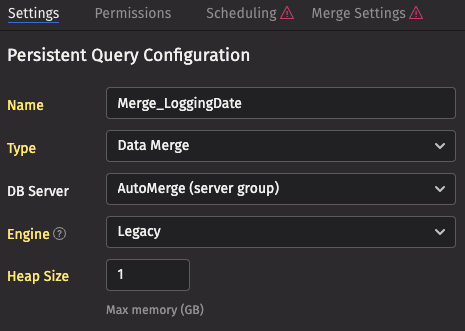
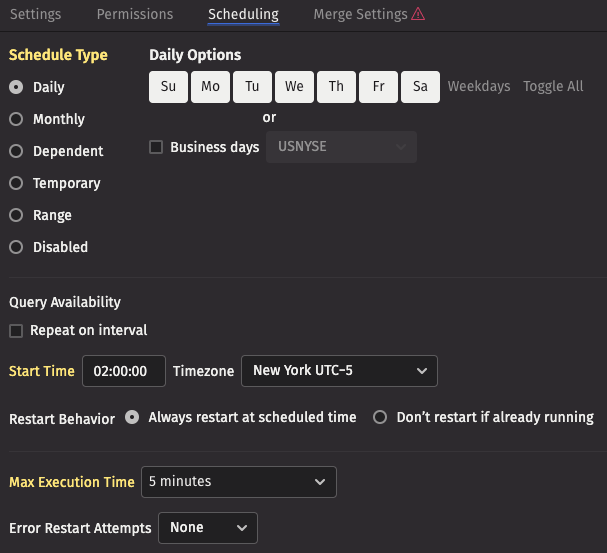
For data that is to be retained, a merge query should be set up to run every night after intraday data ingestion has completed. For this example, we'll assume the merge should be performed after midnight, merging yesterday's data. Select the Scheduling tab and update the scheduling appropriately - this example runs at 2 AM New York time every night.
- The
DailySchedule Type should already be selected. - Ensure that all the days are selected under Daily Options.
- Change the Start Time to
02:00:00. - Set the Max Execution Time to
5 minutes. If the query takes longer than 5 minutes it will fail, but this example should take a few seconds.
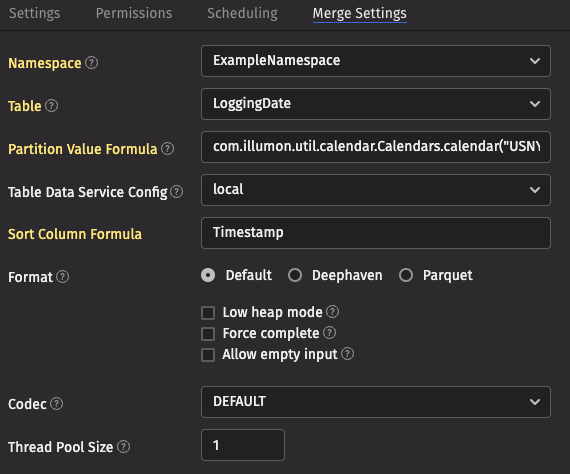
On the Merge Settings tab, choose the namespace and table name.
- The Namespace and Table fields configure the table being merged, which should be set to
ExampleNamespaceandLoggingDate. - The Partition Value Formula specifies the partition to be merged, and uses the Core+ engine's format. Yesterday can be written as
io.deephaven.time.calendar.Calendars.calendar().minusDays(today(), 1). - The Table Data Service Config value tells the merge query to read data locally.
- The Sort Column Formula ensures that the merged data is sorted by the values in the specified columns -
Timestampensures that the data is sorted in time order.
Click Save.
Since the Persistent Query won't run until the early morning, we will start it manually now to see its effects. Select your query name in the Query Monitor and click the Start button.
After it completes, yesterday's data can now be viewed as historical data:
Validate and delete intraday
To simulate a real environment, delete the associated binary logs so they don't get re-ingested after the validation completes. In a real application, the merge would happen the next day after all binary logs were ingested.
At this point (after running the merge), yesterday's data is both intraday and historical. A typical workflow then validates that the data has been written to historical storage and deletes it from intraday, often through the use of a Data Validation Persistent Query that runs immediately after the Data Merge Persistent Query.
Create a Data Validation Persistent Query
To create a Data Validation Persistent Query, you'll need to be logged in to the Deephaven web interface as a data administrator.
The Query Monitor is used to create a Data Validation Persistent Query. Navigate to the Query Monitor tab and click the New button:
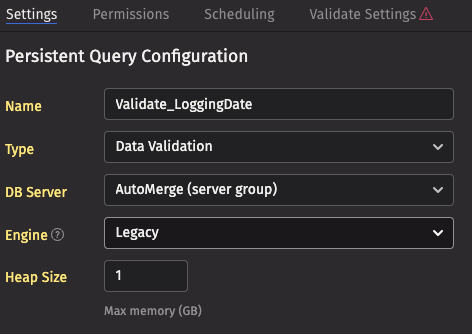
- On the Settings tab, give the Persistent Query a reasonable name.
- Choose the
Data Validationtype. - Select
AutoMergefor the DB server. This tells the server to choose any available merge server (there is probably only one). - Choose
Core+for the Engine. - Assign it 1 GB of memory.
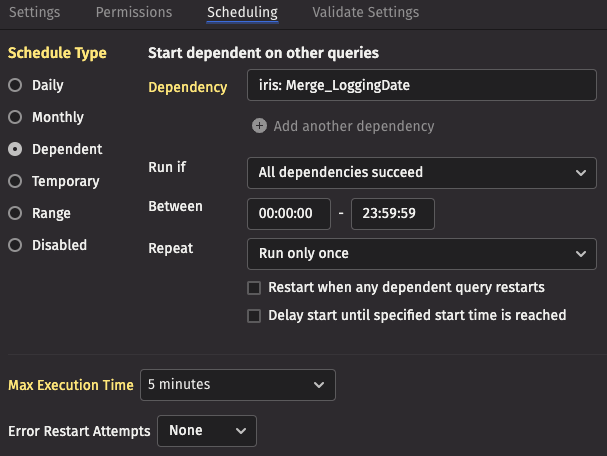
On the Scheduling tab, configure the query so that it automatically starts after the merge query completes.
- Choose the
DependentSchedule Type. - Select the dependency as the merge query created earlier.
- Set the Max Execution Time to
5 minutes.
Update the Validate Settings tab.
- The Namespace and Table fields configure the table being validated, which should be set to
ExampleNamespaceandLoggingDate. - The Partition Value Formula specifies the partition to be merged, and uses the Core+ engine's format. Yesterday can be written as
io.deephaven.time.calendar.Calendars.calendar().minusDays(today(), 1). - For the Validator Classes:
- First click the Use Schema Validation button. This tells the validator to perform validation based on the
<Validator>section in the schema we defined earlier:<assertSize min="1" max="999999999" />indicates that there should be at least one row in the historical table, and no more than999999999rows. Many different data validation options are available.
- Add
io.deephaven.enterprise.validators.generic.RowCountValidatorto the validator classes with a comma after theDynamicValidator(theValidator Classesvalue should look exactly like this:com.illumon.iris.validation.dynamic.DynamicValidator,io.deephaven.enterprise.validators.generic.RowCountValidatorwith no space after the comma). This validator checks that the number of rows in the merged historical table match the rows in the intraday table.
- First click the Use Schema Validation button. This tells the validator to perform validation based on the
- Set Test Type to
Full (Historical)so that the validation runs against the merged (historical) data. - Select the Delete intraday data checkbox. This causes a successful validation to delete the intraday data.
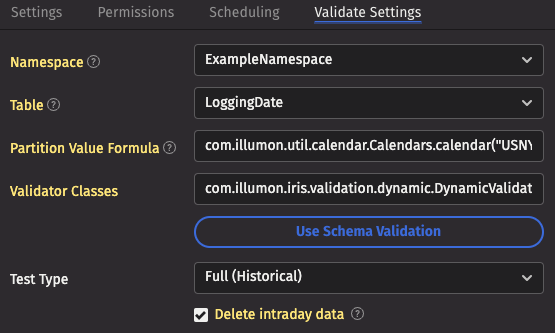
In normal operation, this validation query runs whenever the merge query completes successfully, but it can be started manually by selecting it in the Query Monitor and clicking the Start button. If you've already run the merge query, this validation query will start when you save it.
After it runs, the data will no longer be in yesterday's intraday table, but only in historical. Since data is cached, you'll need to restart your Code Studios (you'll see an exception in any Code Studio looking at the intraday data when it's deleted).