Use Excel with Deephaven
Deephaven's Excel Client allows you to integrate Deephaven data directly into your spreadsheets through an Excel add-in. You can query static or dynamic tables and use the results in your calculations. As ticking data changes, dependent calculations in your sheet automatically update.
Why use Excel with Deephaven?
The Excel integration bridges the gap between Deephaven's real-time data processing capabilities and Excel's familiar analysis environment. This is a powerful combination that allows you to:
Work in a familiar environment — Business analysts, traders, and financial professionals can access live Deephaven data without learning new tools or leaving Excel. Use the formulas, pivot tables, charts, and functions you already know.
Real-time calculations — When you subscribe to ticking tables, your Excel formulas automatically recalculate as data updates. Build dashboards that show live P&L, position tracking, or market analytics that refresh every few seconds.
Bridge technical and business teams — Data engineers can build complex queries and transformations in Deephaven, while business users consume the results in Excel. Each team works with their preferred tools.
Combine powerful systems — Leverage Deephaven's ability to handle billions of rows and complex streaming computations, then analyze filtered results with Excel's rich visualization and analysis features.
Ad-hoc exploration — Quickly test hypotheses and explore data without writing code. Filter Deephaven tables server-side using Deephaven filter expressions, then visualize results with Excel's charting tools.
This guide shows you how to install the add-in, connect to Deephaven, and fetch tables from your Persistent Queries.
Prerequisites
Before installing the Excel add-in, ensure you have:
- The latest 64-bit version of Microsoft Excel with Microsoft Office 365 (or Office 2021 or later).
- A 64-bit Windows operating system.
- Access to the Excel add-in installer (contact Deephaven support if needed).
Install the add-in
Close any open instances of Excel, then run the Deephaven Excel add-in installer.
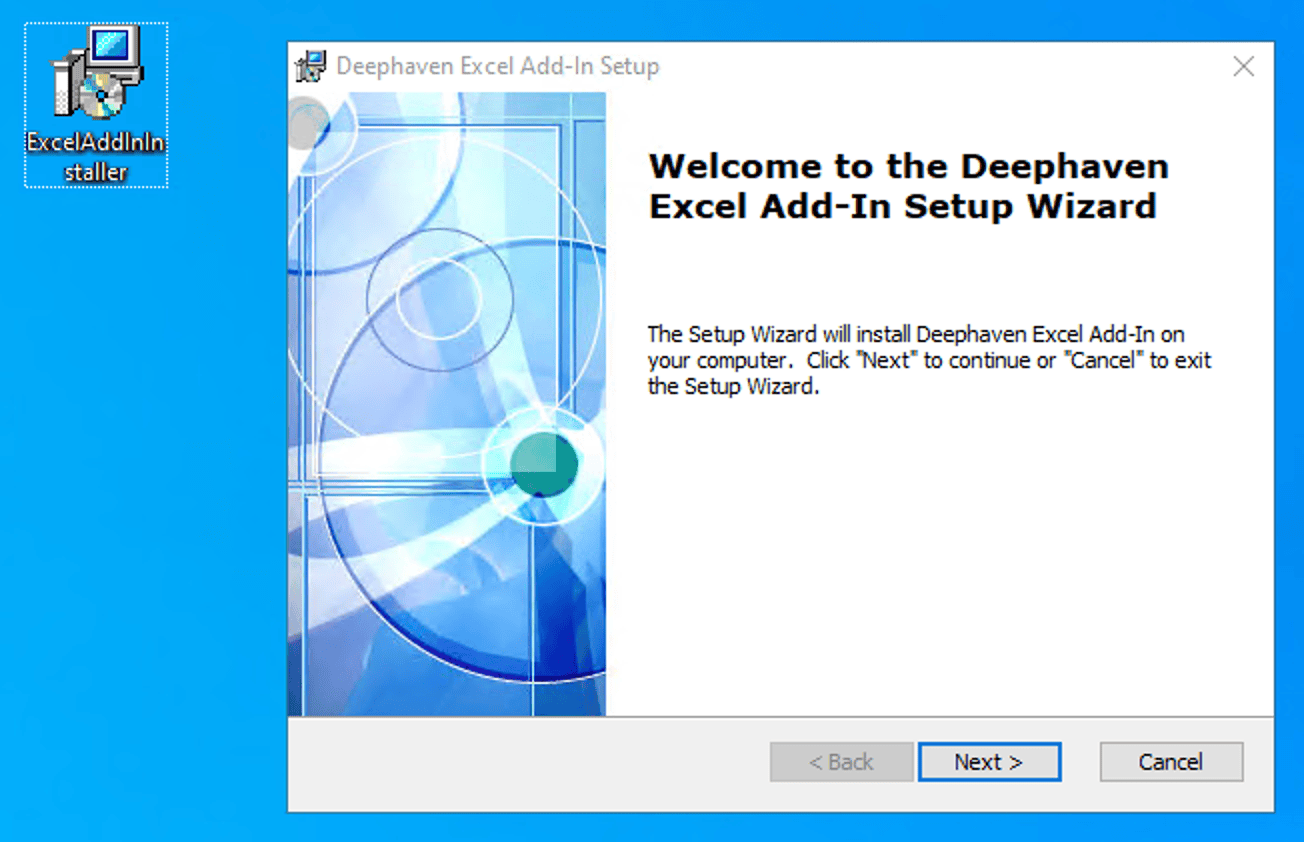
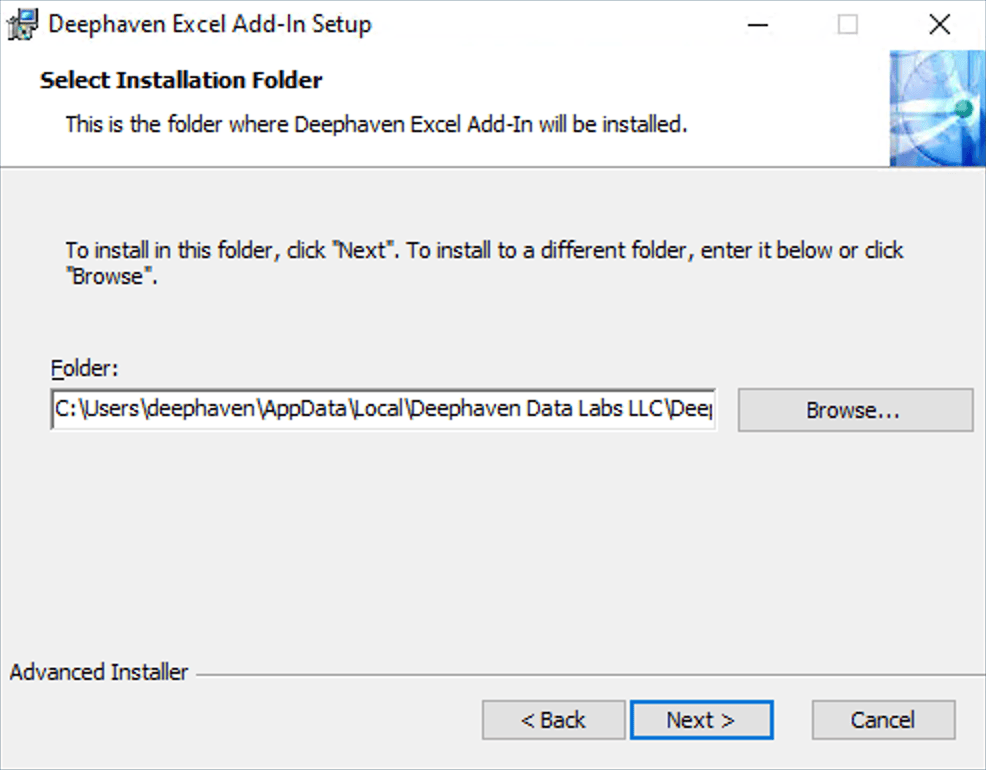
Accept the default installation path and click Next:
Click Install to begin. You may be prompted to install .NET Desktop Runtime if you don't already have it.
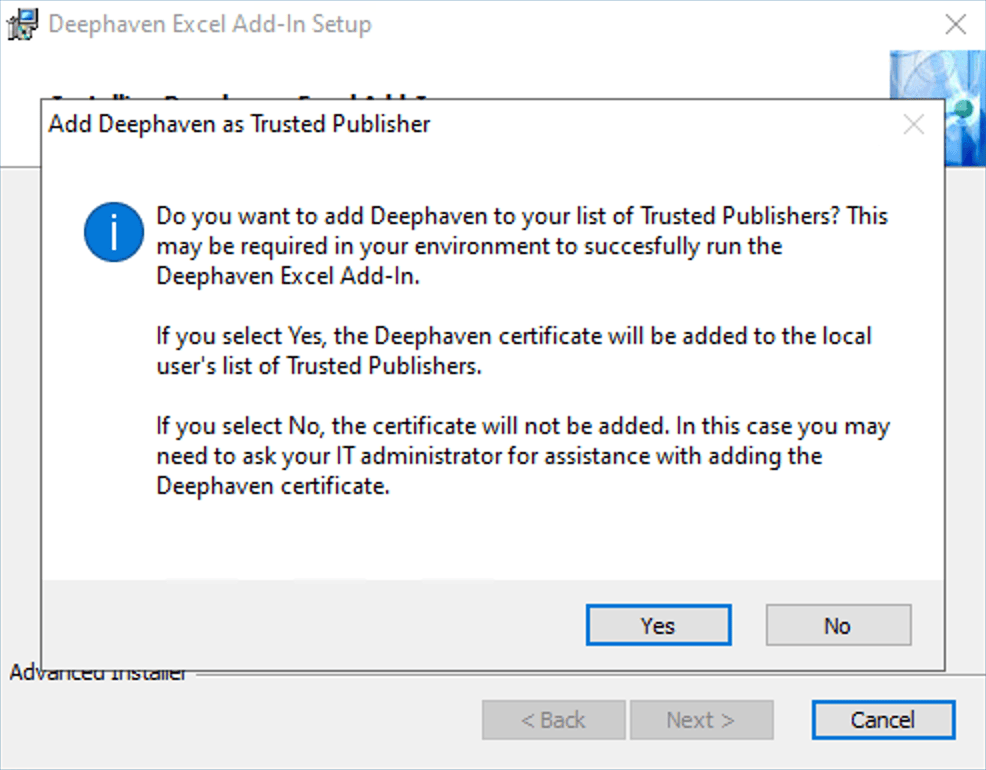
When prompted to Add Deephaven as Trusted Publisher, click Yes to add Deephaven to your computer's list of Trusted Publishers. This allows Excel to run Deephaven code.
Click Finish to complete the installation.
Connect to Deephaven
Open Excel and find the "Deephaven" tab in the menu. Open the tab, then click Control Panel.

In the Connection Manager, select New to create a new connection.
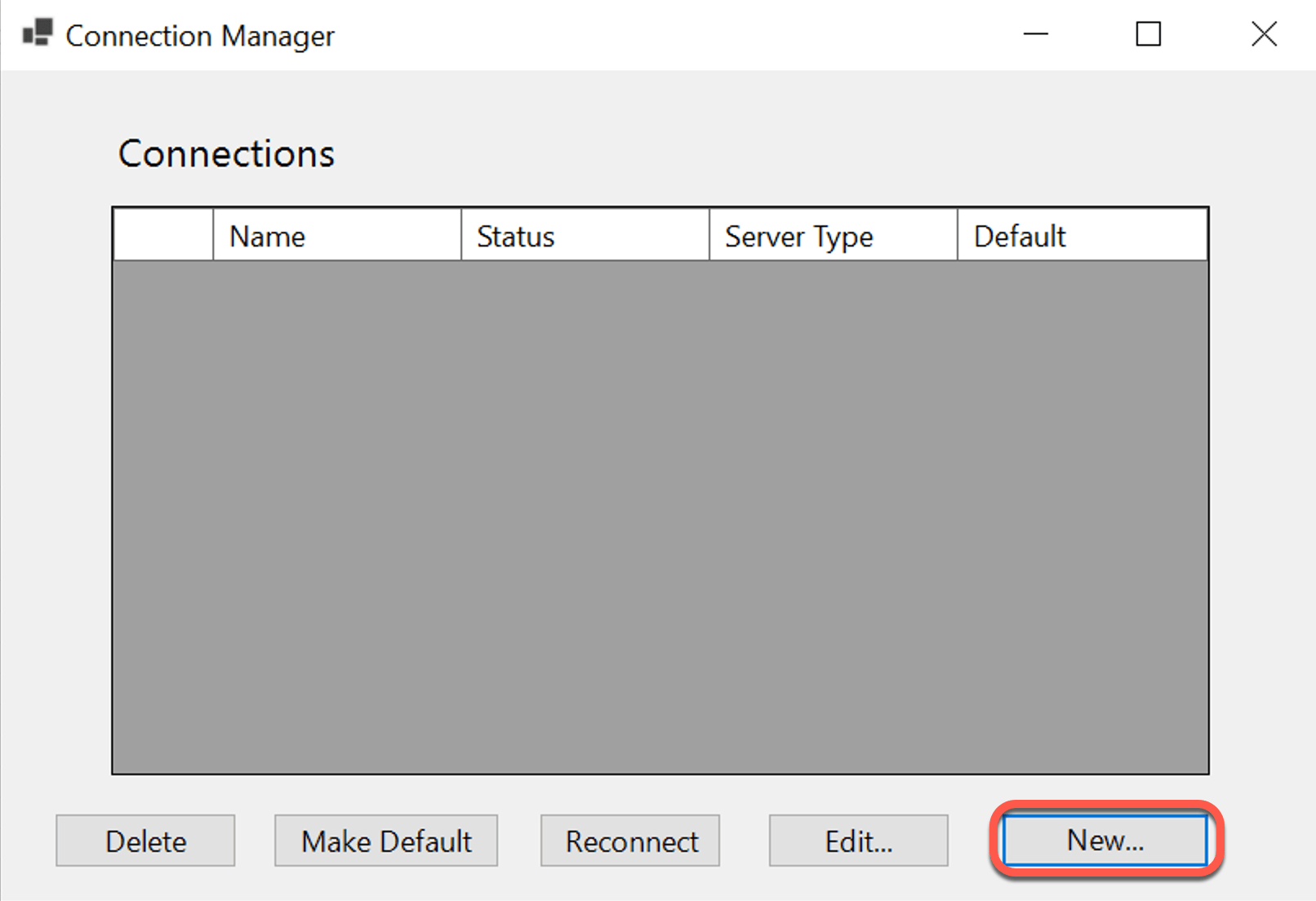
Configure your connection:
- Select Enterprise Core+.
- Choose a Connection ID — a short identifier you'll use to reference this connection in Excel formulas (e.g.,
con1+). - Enter your JSON URL:
<your_server_address>:<port>/iris/connection.json- Use port
8000for servers with Envoy - Use port
8123for servers without Envoy - Example:
https://mydeephavenserver.example.com:8000/iris/connection.json
- Use port
- Enter your UserId and Password for your Deephaven server.
- Click Test Creds to verify the connection.
- Click Set Credentials to save.
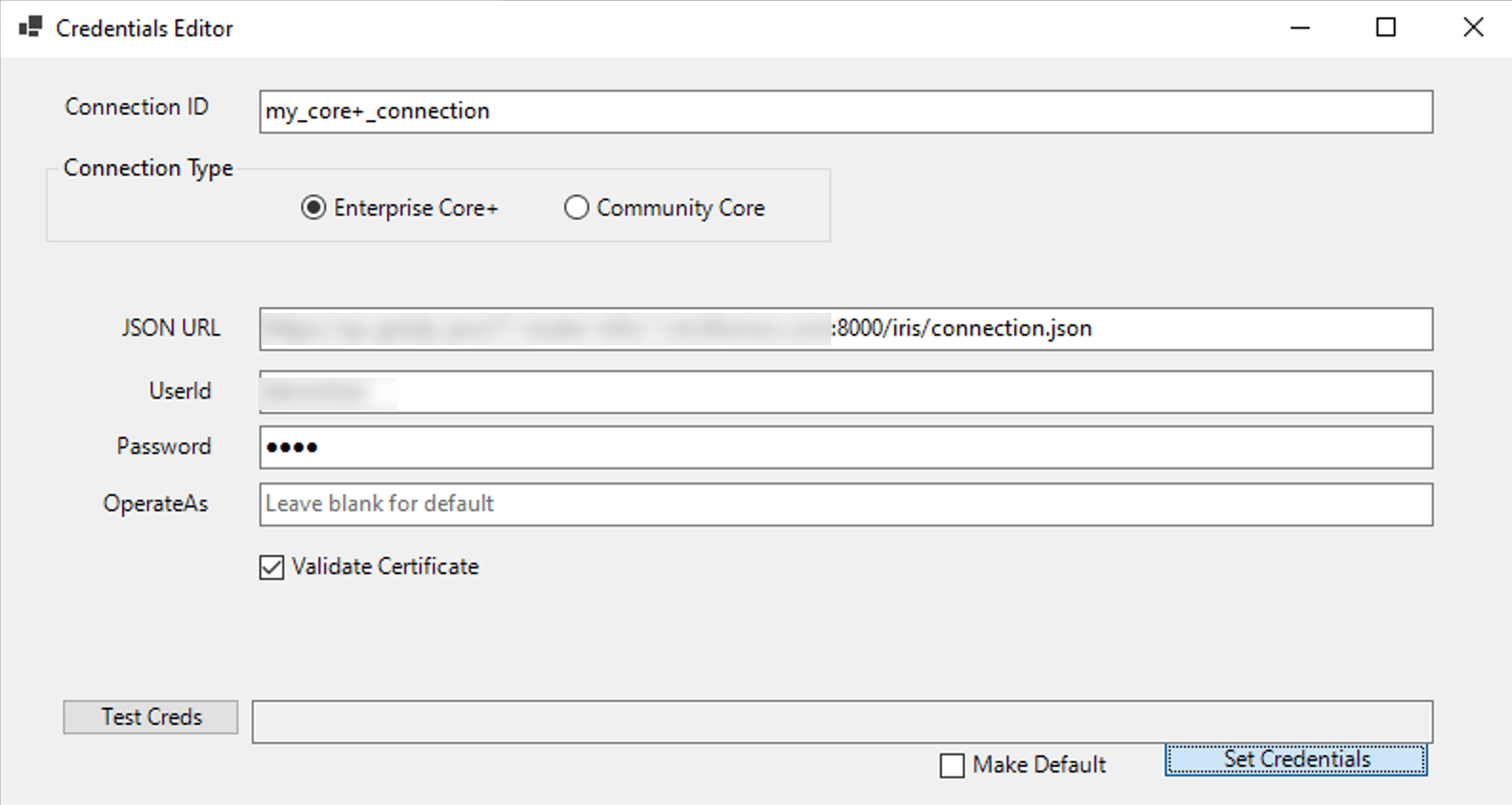
You're now connected to Deephaven!
Fetch data from Deephaven
The Excel client provides two functions to access Deephaven data:
DEEPHAVEN_SNAPSHOT
Retrieves a single snapshot of table data at a specific point in time. Works on both static and ticking tables.
Syntax:
Parameters:
TABLE_DESCRIPTOR:"<ConnectionID>:<PersistentQueryName>/<TableName>"(e.g.,"con1+:pq1/my_table")FILTER_STRING(optional): Filter expression (e.g.,"Symbol = `AAPL` && Quantity > 50")WANT_HEADERS(optional):TRUEto include column names,FALSEotherwise (default:FALSE)
Example:
First, create a Persistent Query called test_pq with a simple table:
Then in Excel, use:
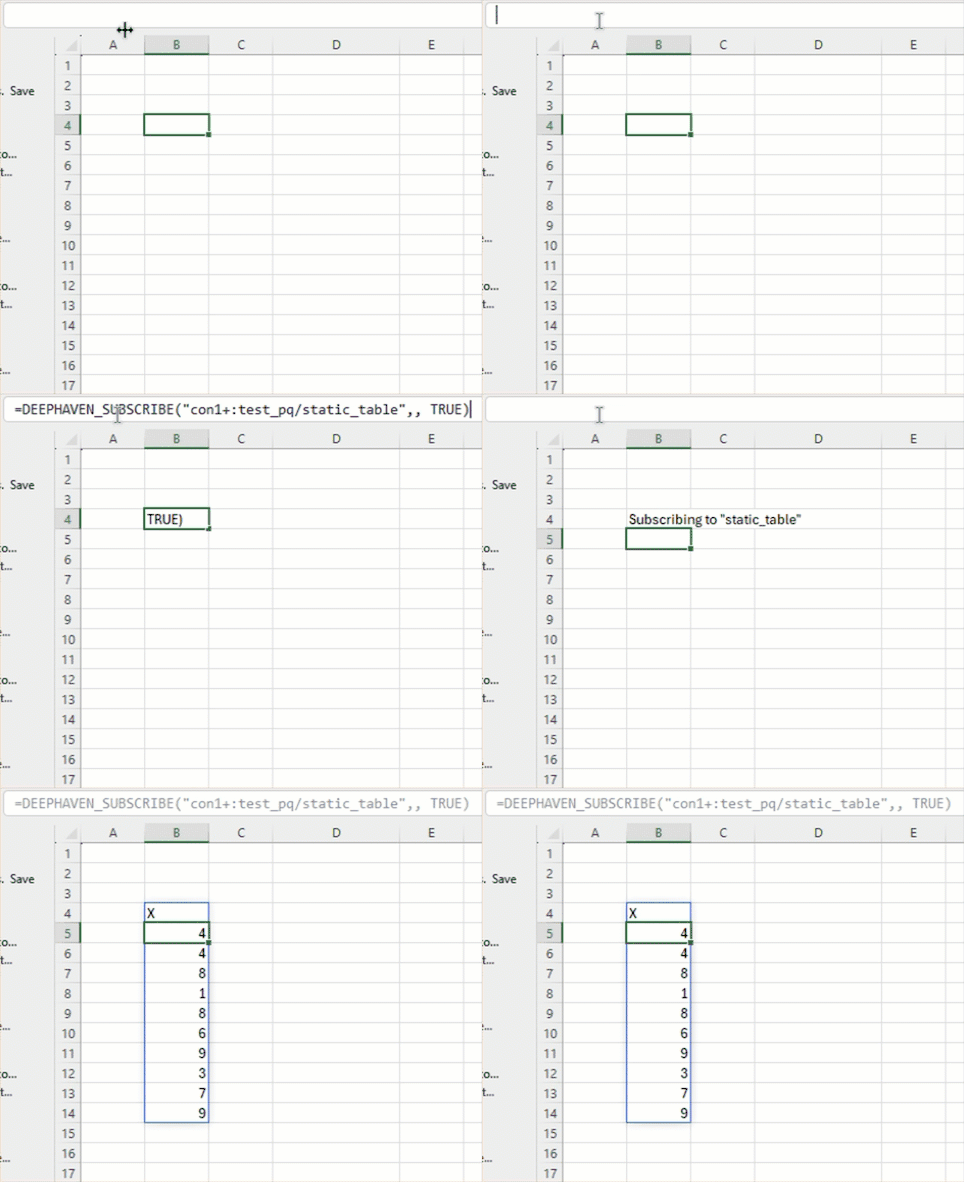
DEEPHAVEN_SUBSCRIBE
Subscribes to ticking table updates and automatically refreshes data as it changes on the server.
Syntax:
Example:
Create a Persistent Query called test_pq with a ticking table:
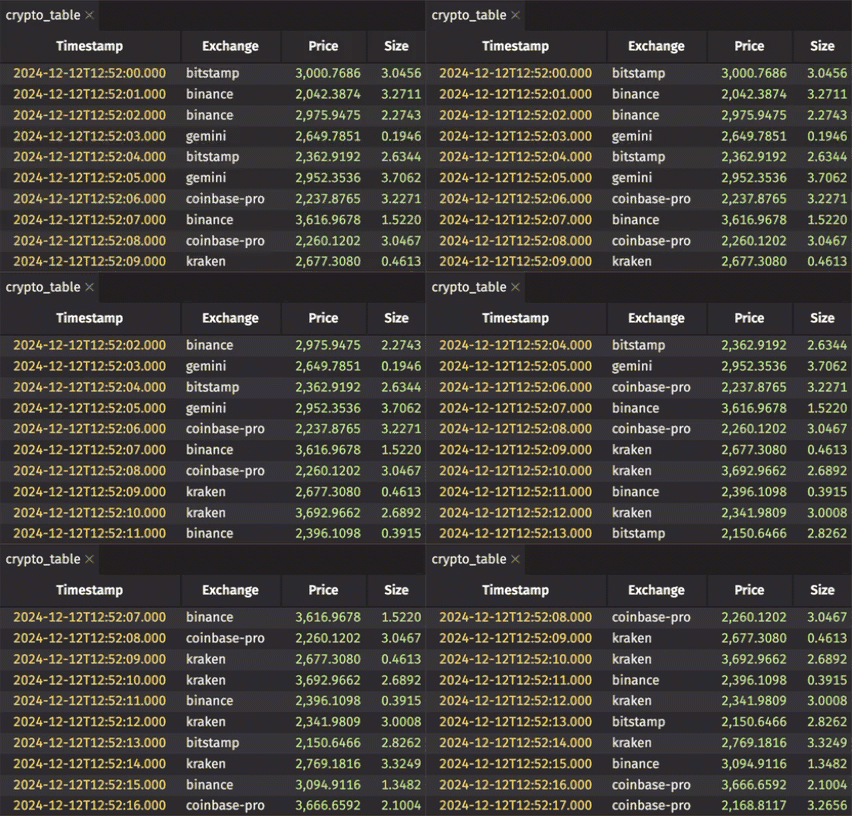
In Excel, fetch the ticking table:
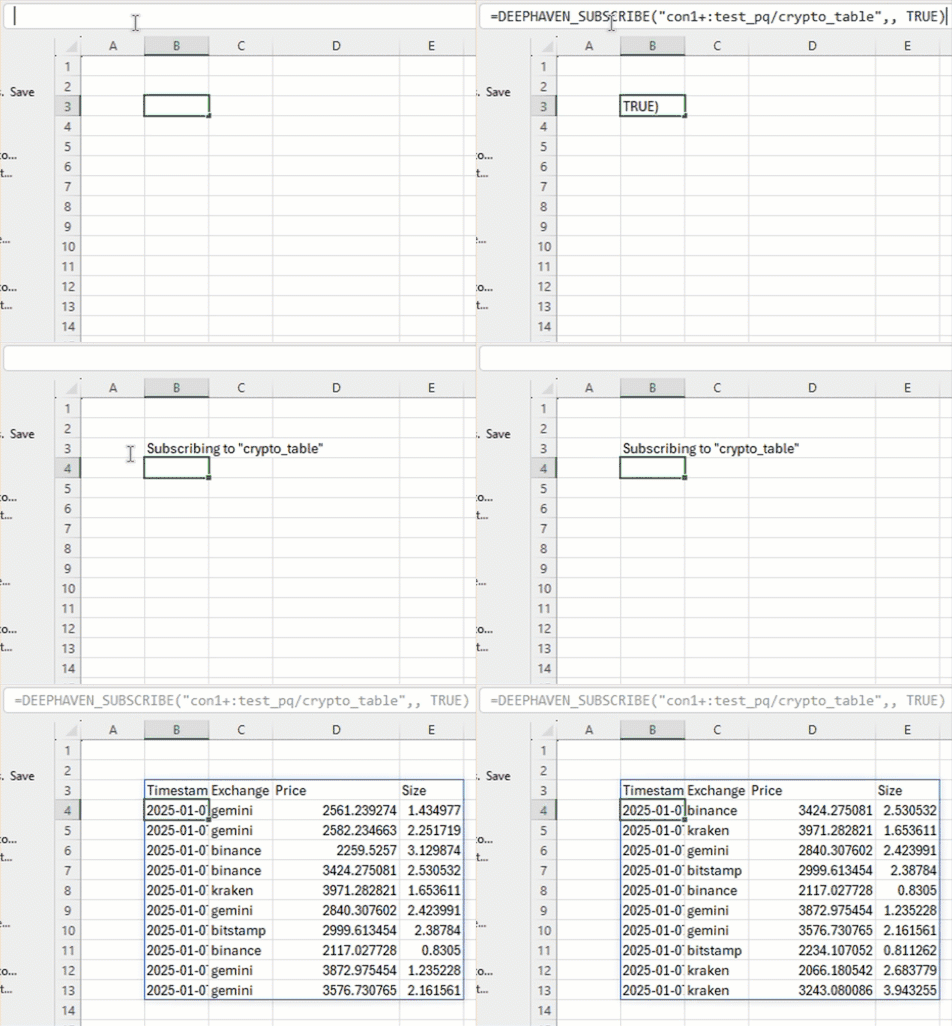
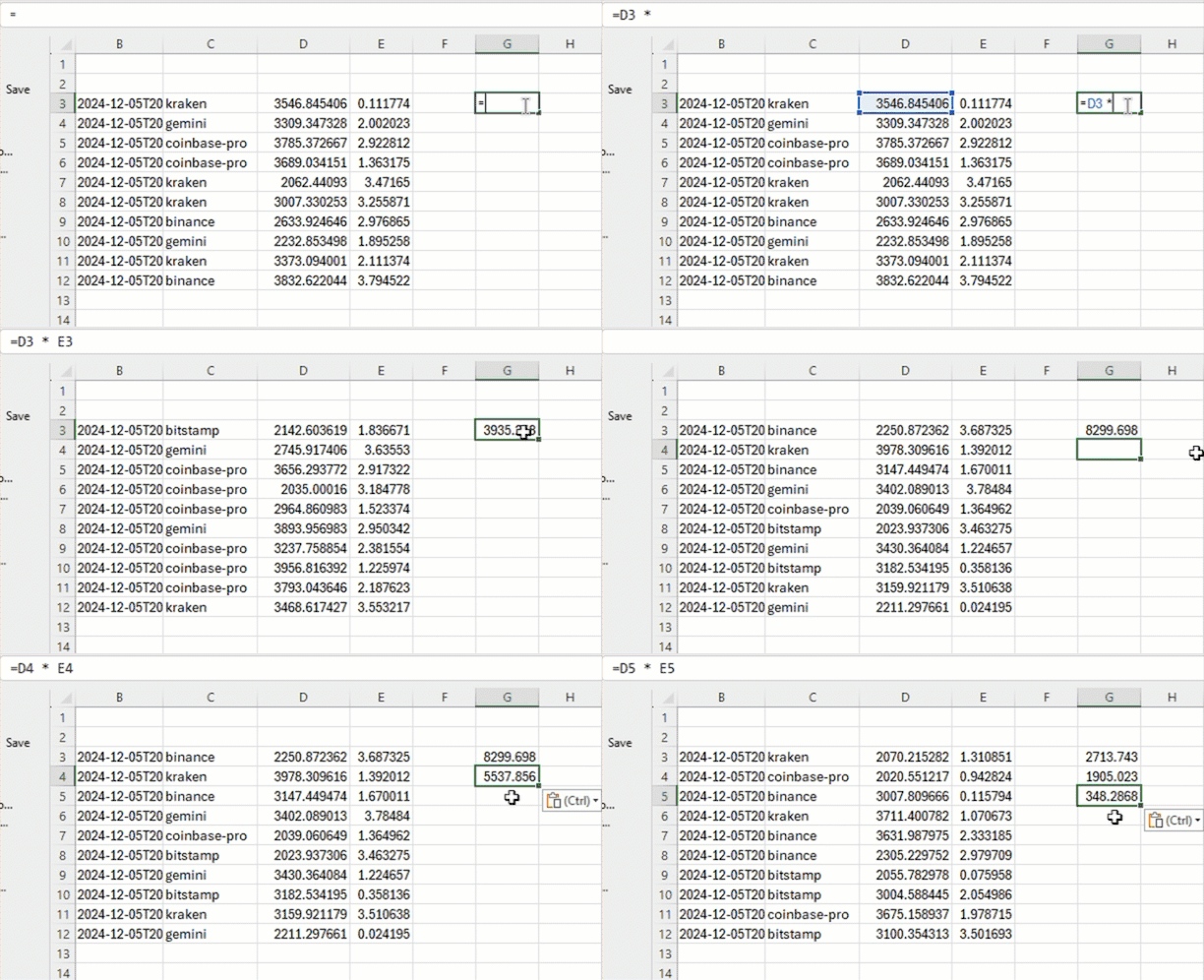
Cells that reference this data will automatically update when the source table changes. For example, multiply Price and Size using relative references:
Note
For ticking data, expect Excel to update your sheet every few seconds.
Use Excel formulas with Deephaven data
Once you have Deephaven data in Excel, you can use standard Excel functions. For example:
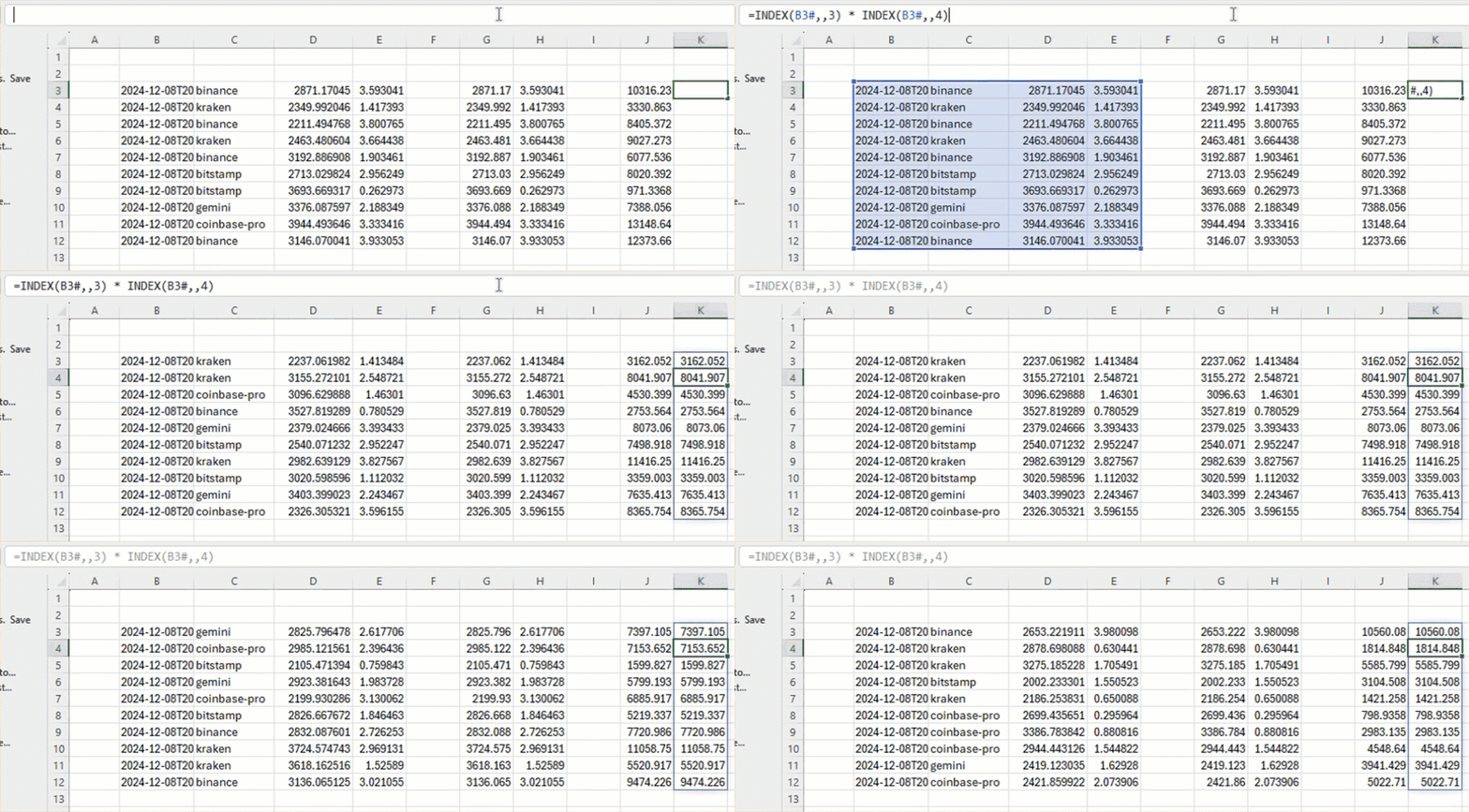
Use INDEX and dynamic array references:
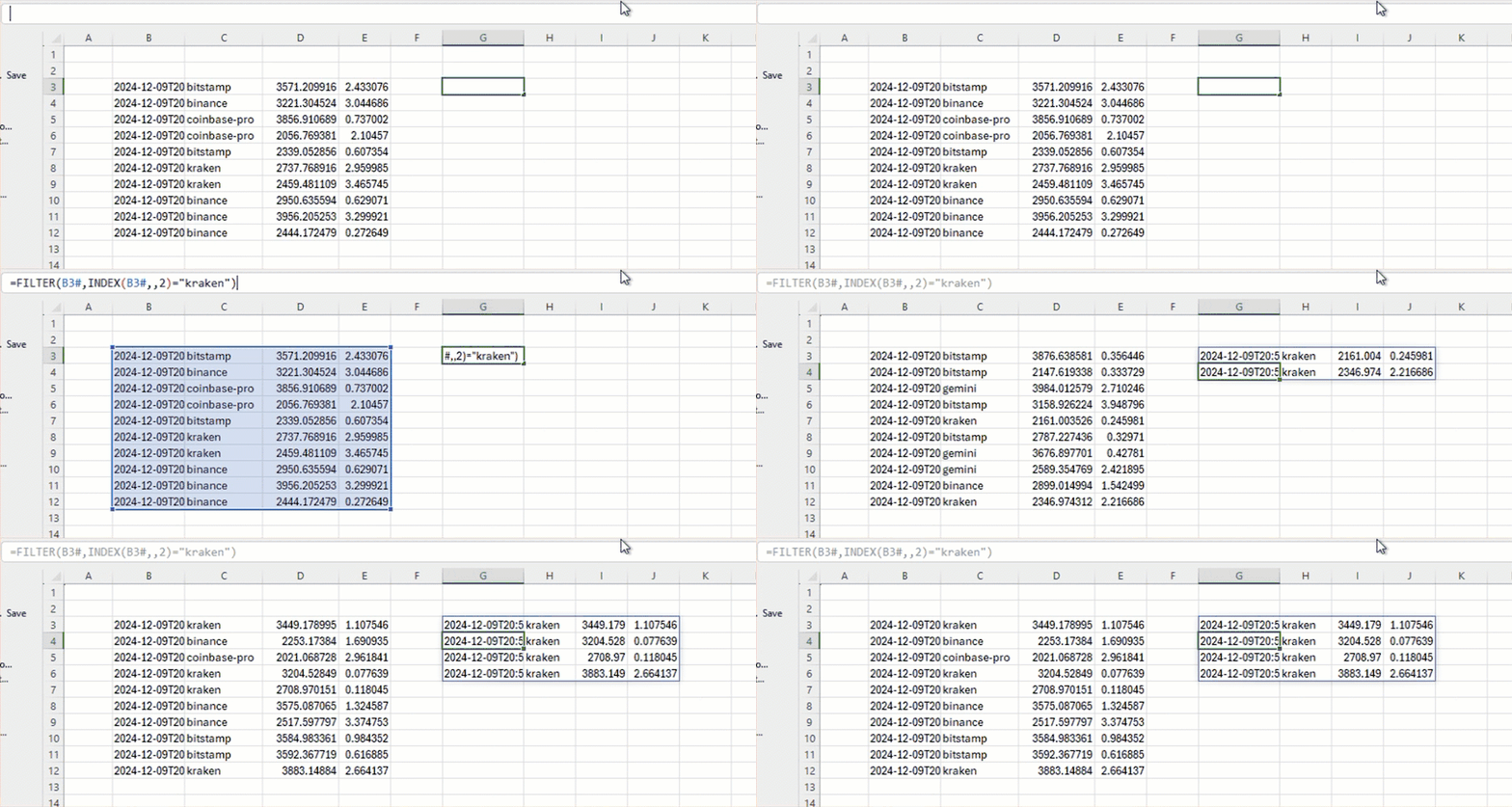
Filter with FILTER:
With the Deephaven Excel client, you have the full power of Excel to analyze, visualize, and transform your real-time data.