writeCsv
The writeCsv method will write a table to a standard CSV file.
Syntax
Parameters
| Parameter | Type | Description |
|---|---|---|
| source | Table | The table to write to file. |
| sources | Table[] | An array of Deephaven Table objects to be exported. |
| columns | String... | A list of columns to include in the export. |
| destPath | String | Path name of the file where the table will be stored. |
| compressed | boolean | Whether to compress (bz2) the file being written. |
| nullsAsEmpty | boolean | Whether nulls should be written as blank instead of |
| out | Writer | Writer used to write the CSV. |
| progress | BiConsumer<Long, Long> | A procedure that implements BiConsumer, and takes a progress Integer and a total size Integer to update progress. |
| timeZone | TimeZone | A TimeZone constant relative to which DateTime data should be adjusted. |
| tableSeparator | String | A String (normally a single character) to be used as the table delimiter. |
| fieldSeparator | char | The delimiter for the CSV files. |
| separator | char | The delimiter for the CSV. |
Returns
A CSV file located in the specified path.
Examples
Note
Deephaven writes files to locations relative to the base of its Docker container. See Docker data volumes to learn more about the relation between locations in the container and the local file system.
In the following example, write_csv writes the source table to /data/output.csv. All columns are included.
In the following example, only the columns X and Z are written to the output file. Null values will appear as "(null)" due to setting nullsAsEmpty to false.
In the following example, we set compressed to true, which means that our call to writeCsv will generate a "/data/output.csv.bz2" file rather than just a CSV.
Note
It is unnecessary to include the .bz2 suffix in an output file path; this will be appended automatically when the file is compressed. If .bz2 is included in the path, the resulting file will be named "/data/output.csv.bz2.bz2".
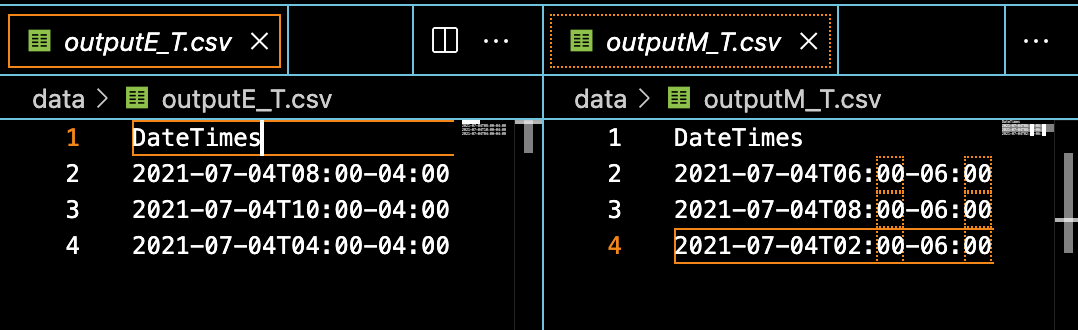
In this example, we use the timeZone parameter so that when we call writeCsv, the resulting file will adjust the values in our DateTimes column accordingly.
In the following example, we create two tables and then combine them into an array. Then, we call writeCsv to write the "A" and "B" columns to our output CSV file.
In the following example, we create a source table, and then create a closure called progress which Groovy will convert to a Java BiConsumer when we call the writeCsv method. With this method call, we will see output in the log telling us how far along our query is as it runs.