Install and run with Docker
You can run Deephaven from pre-built Docker images without installing Java or Python yourself. This guide shows you how to run Deephaven from Docker, choose a deployment, and customize it for your applications.
Note
Docker isn't the only way to run Deephaven. Developers interested in tinkering with and modifying source code should build Deephaven from source. Users who wish to run from build artifacts without Docker should install and run the Deephaven production application.
Supported operating systems
Deephaven's Docker images run on the following operating systems:
- Linux
- macOS
- Windows 10 or 11 with Windows Subsystem for Linux 2 (WSL 2)
Warning
WSL 2's default time-sync setup can cause spurious 10–20-second clock jumps that stall Deephaven ticking tables. Before running Deephaven on WSL 2, apply one of the time-sync workarounds.
Prerequisites
Running Deephaven from Docker requires docker version 20.10.8 or later.
To run the docker-compose.yml files on this page, you also need Docker Compose.
The simplest possible installation
The following shell command downloads and runs the server-slim image (Deephaven with Groovy):
Once the container is running, open the Deephaven IDE and log in. That section explains where to find your key, and Set a pre-shared key shows how to choose your own.
Warning
docker run creates a new container from an image every time you call it. To reuse a container that docker run created, use docker start.
Choose a deployment
The Groovy examples on this page use the server-slim image, which runs Deephaven with a Groovy console. Deephaven's other pre-built images, such as server, run a Python console.
Deephaven also has pre-built docker-compose.yml files in the containers directory of the deephaven-core repository. The Groovy files run server-slim:
groovyrunsserver-slimalone.groovy-examplesadds example data.groovy-redpandaadds Redpanda.groovy-examples-redpandaadds both.
To use one, save its docker-compose.yml to an empty directory and start the application.
Image versions
The examples below use the latest version. Deephaven recommends staying up to date, but you can pin an earlier image version if needed. The version can be any of the following:
latest(default): The most recent release.- A release tag, such as
41.7or42.6: That specific release. edge: A nightly build that contains unreleased features.
Not every Deephaven release has a Docker image. To see which versions are available, check the image tags on GitHub.
To use a different version, replace latest in the image name. For example, ghcr.io/deephaven/server-slim:42.6 runs release 42.6.
Most docker-compose.yml examples on this page read the VERSION environment variable, which sets the image version and defaults to latest. For example, VERSION=42.6 docker compose up runs release 42.6.
The groovy-examples file also runs a second image, ghcr.io/deephaven/examples, which downloads the example data from GitHub into ./data/examples the first time it runs. That image reads VERSION too, but its tags don't match Deephaven release numbers. To pin a Deephaven release with that file, edit the Deephaven image: line instead of setting VERSION.
Modify the deployment
You can modify the Deephaven deployment with Docker alone or with Docker Compose. Most subsections below show both ways. Add a second image and Build a custom image use Docker Compose only. Deephaven recommends Docker Compose for custom deployments. To learn why, see Key benefits of Docker Compose.
To modify the deployment with Docker alone, create the container with docker create, and then run it with docker start. Don't use docker run here (see the warning under The simplest possible installation). Each docker create example below names the container deephaven. If a container with that name already exists, such as the one from The simplest possible installation, remove it first with docker rm -f deephaven, or pass a different --name.
To modify the deployment with Docker Compose, edit the docker-compose.yml file that creates the container. The examples below modify the following docker-compose.yml file. Save it in an empty directory.
docker-compose.yml
The START_OPTS environment variable passes JVM options to the Deephaven server. In this file, -Xmx4g sets the maximum heap size to 4GB. Some subsections below change this variable. Separate multiple options with spaces. The docker create examples set only the option they demonstrate, so add -Xmx4g to them if you want the same heap size as the Compose file.
DEEPHAVEN_PORT sets the host port and defaults to 10000. Change the port shows how to use it. VERSION sets the image version, as described in Image versions.
After you run a docker create command or edit the file, see Start the application to launch Deephaven.
Set a pre-shared key
By default, Deephaven uses a pre-shared key to authenticate users. Set your own key so you don't have to look up the generated one each time the server starts.
The following deployment sets the pre-shared key to YOUR_PASSWORD_HERE.
Disable authentication
Anonymous authentication allows anyone to access a Deephaven instance. The following deployment enables anonymous authentication.
Add more memory
The following deployment sets the server's maximum heap size to 8GB.
Change the port
The following deployment maps port 9999 on the host to Deephaven's port 10000 in the container, so you connect to Deephaven from your web browser on port 9999.
The example docker-compose.yml file from Modify the deployment reads the host port from the DEEPHAVEN_PORT environment variable, which defaults to 10000. Instead of editing the file, you can keep it unchanged and run DEEPHAVEN_PORT=9999 docker compose up.
Add a second volume
The example docker-compose.yml file mounts a local data directory at /data in the container. The following examples mount a local specialty directory at /specialty. The Compose version keeps the data mount as well:
Import custom JARs
You can make your own Java classes and third-party libraries available to queries by placing their JARs under /apps/libs. The images add /apps/libs/* to the JVM classpath at startup. For more ways to add JARs, see Install and use Java packages.
First, copy your JARs into a local jars directory:
Then mount that directory at /apps/libs:
Now you can run queries that use your custom JARs. For example, if you have a class org.example.MathFns with a static method square(long x), you can run the following query:
Add a second image
Docker Compose specializes in running multi-container applications, so Deephaven recommends it for running a second image alongside Deephaven. The following YAML file runs Deephaven with Redpanda.
Build a custom image
Some deployments are easier to manage as a custom image. For example, instead of mounting a jars directory as in Import custom JARs, you can build the JARs into the image so that every container started from it can use them without an extra volume mount. These deployments typically extend a Docker image with both a Dockerfile and a docker-compose.yml file.
The following subsections build a custom Deephaven image that adds Java libraries the official Deephaven images don't include.
Note
Put the jars directory in the same directory as the Dockerfile and docker-compose.yml.
Dockerfile
A Dockerfile defines how to build a Docker image: the base image to start from and the steps that customize it.
The following Dockerfile takes the latest Deephaven server-slim image and copies the JARs in the local jars directory into /apps/libs, which the image adds to the JVM classpath at startup.
To build on a specific release, replace latest in the FROM line with that release tag, such as 42.6. The VERSION variable described in Image versions doesn't apply to an image you build yourself.
docker-compose.yml
Docker Compose can build a Docker image from a local Dockerfile. The following YAML file builds a Docker image from a Dockerfile named Dockerfile in the same directory and runs a container from it.
Start the application
To start a Deephaven application built from a docker-compose.yml file, run:
If your docker-compose.yml uses build:, as in Build a custom image, the --build flag first rebuilds the image from your Dockerfile. If the file uses a pre-built image: instead, the flag has no effect.
Note
If you've pulled a Deephaven image on this machine before, for example with docker run or an earlier docker compose up, run docker compose up --build --pull always instead so that you get the latest Docker images. Before running docker create, run docker pull ghcr.io/deephaven/server-slim:latest for the same reason.
To start a container you created with docker create, run docker start with the container's name:
Open the Deephaven IDE
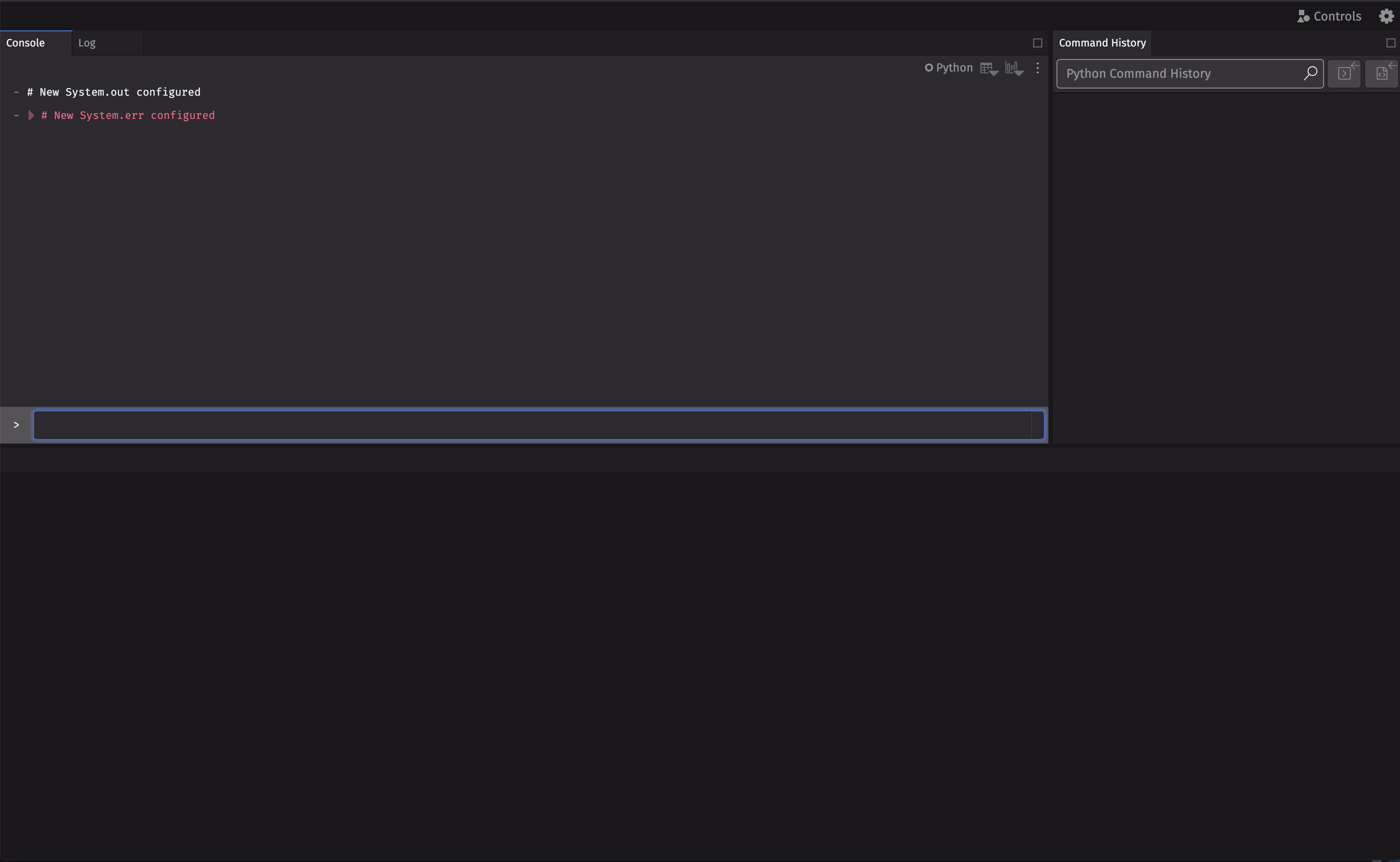
Once Deephaven is running, you can open the Deephaven IDE in your web browser. The Deephaven IDE allows you to interactively analyze data and develop new analytics.
- If Deephaven is running locally, navigate to http://localhost:10000/ide/.
- If Deephaven is running remotely, navigate to
http://<hostname>:10000/ide/, where<hostname>is the address of the machine Deephaven is running on.
If you changed the port, replace 10000 with that port.
Unless you disabled authentication, the IDE asks for a key when it opens. Enter the pre-shared key you set. If you didn't set one, Deephaven generates a random key each time it starts and prints it to the container's logs. To see the logs, run docker logs deephaven, or docker compose logs for a Compose deployment.
Find example data
The Deephaven examples repository contains datasets that help you learn Deephaven. Deephaven's documentation uses these datasets extensively, and some examples require them.
If you chose a deployment with example data, the example datasets appear in a data/examples directory next to your docker-compose.yml file. Inside the container, the same files are at /data/examples. See Docker data volumes for more information on how Docker mounts files.