Upload a table from a file
Deephaven lets you import a CSV or other delimited file directly from the UI and make it immediately available as a table in your session.
Upload a table from a file
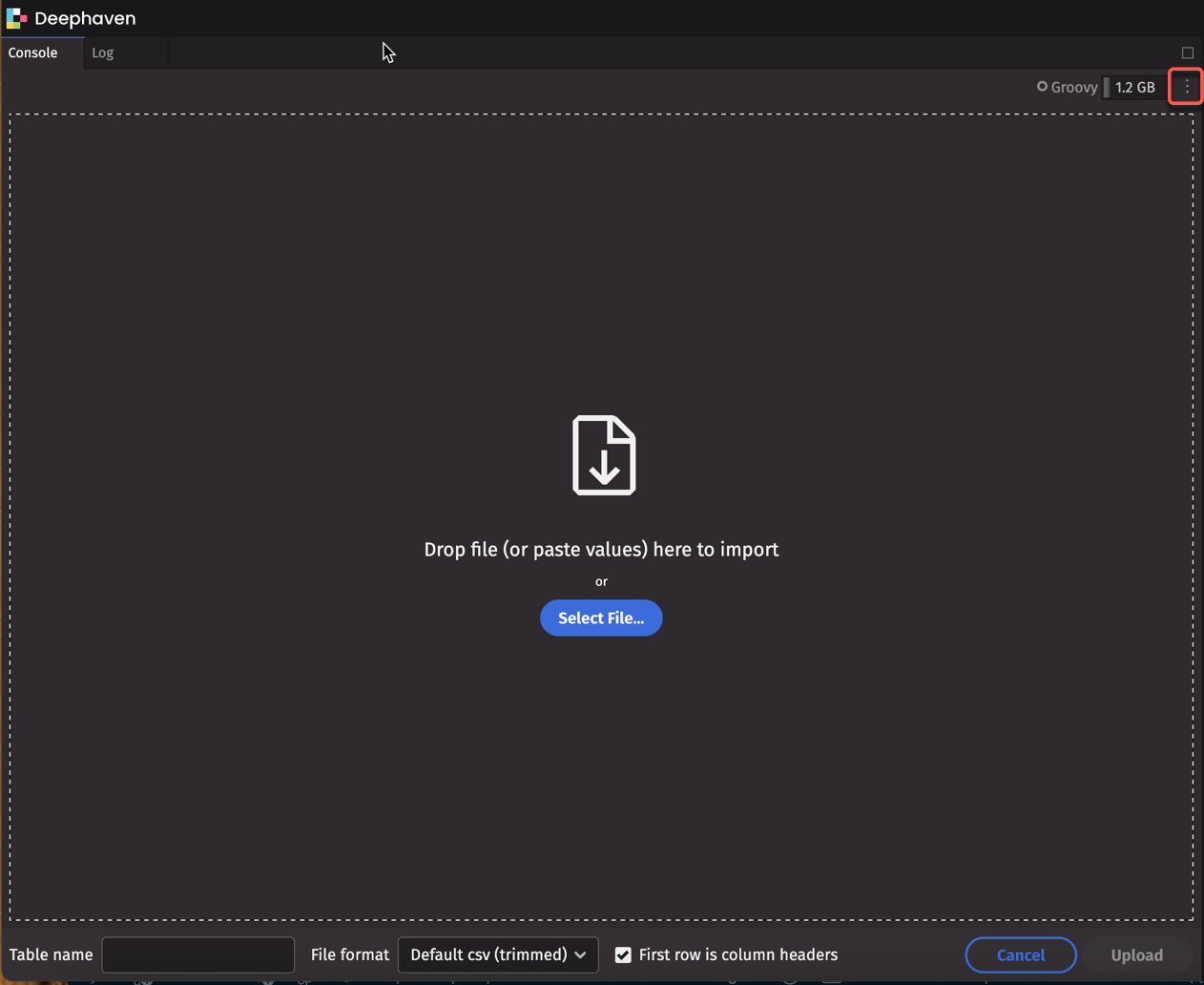
- Click the Console Options menu (⋮) next to your session name.
- Select Upload Table from File.
- In the dialog that opens, drop your file onto the drop zone or click Select File to browse for it.
- Set a Table name — this is the variable name the table will have in your session.
- Choose a File format from the dropdown (for example, Default csv (trimmed)).
- Check or uncheck First row is column headers as appropriate.
- Click Upload.
The table appears immediately in your session and is listed in the Tables dropdown.
Note
Uploaded tables are held in memory for the duration of your session. To persist data, write it to /data/ using writeCsv or another export method.