Create and organize notebooks
You can use Deephaven notebooks to develop query components, stage draft queries, or store notes. Think of a notebook as a sandbox where you develop and refine queries, then run them in the Console with one click. A query on ticking data keeps updating after you run it, so you can watch its results change as new data arrives.
The File Explorer is a tab in the right-hand pane of the Deephaven GUI. It lists the notebooks and folders saved on the server and lets you create, open, copy, rename, move, and delete them.
Create notebooks and folders
Use the two buttons at the top of the File Explorer to create new notebooks and folders.
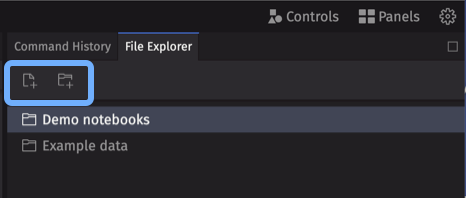
Click the New notebook button on the left, and a blank notebook opens below the Console panel.
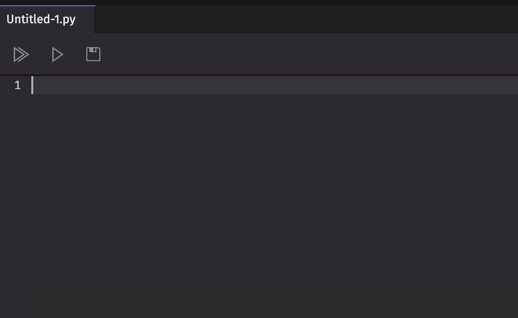
The filename extension matches the programming language of your current session, so a new notebook in a Python session gets a name like Untitled-1.py.
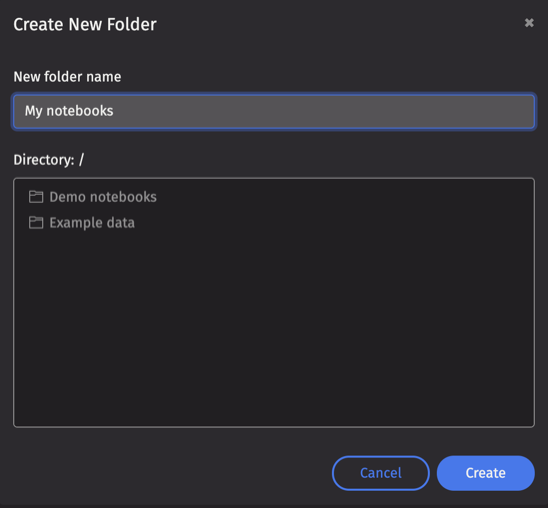
Click the New folder button on the right to create a folder. A Create New Folder dialog opens, where you name the folder and choose the directory to create it in.
Run and save a notebook
The notebook toolbar has three buttons and a More Actions menu.
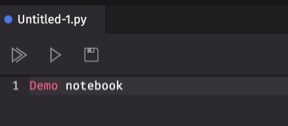
- Run: Runs the notebook's entire content in the Console.
- Run Selected: Runs the selected lines in the Console. A line you highlight only part of runs in full. If nothing is highlighted, it runs the line the cursor is on.
- Save: Saves the notebook as a file on the server, where it appears in the File Explorer. The first time, Deephaven asks for a filename and directory and renames the tab to match. After that, Save overwrites the file. See Where notebooks are stored.
- More Actions: Opens a menu of other notebook actions, including Find, Copy File, Rename File, Delete File, Show Minimap, and Word Wrap. Python notebooks also get Format Document and Format on Save.
Run and Run Selected are available only when the notebook's language matches your session's, so a .groovy notebook can't run in a Python session.
A blue circle on a notebook's tab means the notebook has unsaved changes.
A notebook whose name ends in .md opens as rendered Markdown instead of in the code editor, and it doesn't have the notebook toolbar. Instead, each code block in it has its own Run code button. The Run Selected Code button at the top runs the highlighted code block and then highlights the next one, so you can step through the notebook one block at a time.
Use the notebook context menu
Right-clicking within the body of a notebook opens a context menu with the following options.
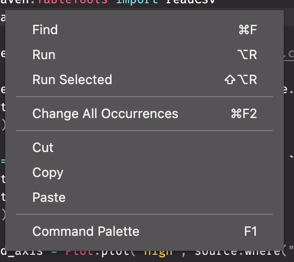
- Find: Opens a search bar for that notebook.

- Run and Run Selected: Run the whole notebook or the selected lines, like the toolbar buttons of the same names.
- Change All Occurrences: Selects every occurrence of the selected text in the notebook. When you type, all of them change at once.
- Format Document: Formats the notebook's Python code. This option appears only for Python notebooks.
- Cut: Removes the highlighted content and copies it to the clipboard.
- Copy: Copies the highlighted content to the clipboard.
- Paste: Inserts the clipboard's content at the cursor.
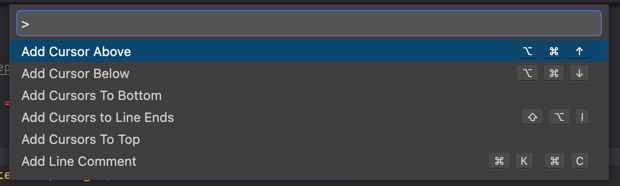
- Command Palette: Opens the Command Palette, which lists the editor's commands and the keyboard shortcuts for common ones.
Organize notebooks
The File Explorer lists your saved notebooks and folders. Use it to open, copy, rename, delete, and arrange them:
- Click a notebook to preview it. A preview tab shows one notebook at a time, and the next notebook you click replaces it.
- Double-click a notebook to open it in its own tab. If it's already open, Deephaven switches to its tab.
- Click a folder to expand or collapse it.
- Right-click a notebook to copy, rename, or delete it, or right-click a folder to rename or delete it.
- The same right-click menu has New File and New Folder, which create a notebook or folder.
- To delete several items at once, Shift-click or Ctrl-click (Cmd-click on macOS) to select them, then right-click and choose Delete.
- Drag any item into or out of a folder to organize your files.
Where notebooks are stored
The server stores notebooks as files in the storage/notebooks directory under its data directory:
- Docker: The Deephaven Docker images set the data directory to
/data, so notebooks are in/data/storage/notebooks. - Other installations: The data directory is OS-dependent. The server prints it at startup as
deephaven.dataDirunless bootstrap logging is turned off.
To change the data directory, see Bootstrap configuration. To move only the storage root, set the storage.path property.
Warning
If you run Deephaven in Docker without mounting your own volume at /data, the server stores notebooks in an anonymous Docker volume. A container you start later with docker run gets a new, empty volume and doesn't see them. Mount a persistent Docker volume or a host directory at /data to keep your notebooks. See Access your file system with Docker bind mounts for instructions on persisting your notebooks across container restarts and removals.