Capture Python client tables with Barrage
The Deephaven Python client can create new tables and retrieve references to tables on a remote Deephaven server. These references are not true Deephaven tables, so you can't use them in a typical Deephaven server query.
To get true Deephaven tables from a remote server, you capture them. Capturing a table means either subscribing to its real-time updates or taking a static snapshot of its data. You capture tables over Barrage using shared tickets, which are identifiers that clients and servers can both use to address the same Deephaven table.
Shared tickets let you capture tables that you create or access with the Python client, whether they are static or ticking. To pull a table that already exists on the remote server by name, you can use a URI instead, as long as the remote server accepts anonymous authentication. See the URI guide.
Setup
This guide covers capturing tables from a remote Deephaven server to a local Deephaven server. The servers do not need to run on different hosts, but the terminology helps distinguish the two.
The local server creates two connections to the remote server. The first connection is from the Deephaven Python client, pydeephaven. The local server uses it to run queries on the remote server. The second connection is a Barrage session that retrieves tables from the remote server. Here is a diagram of the setup:
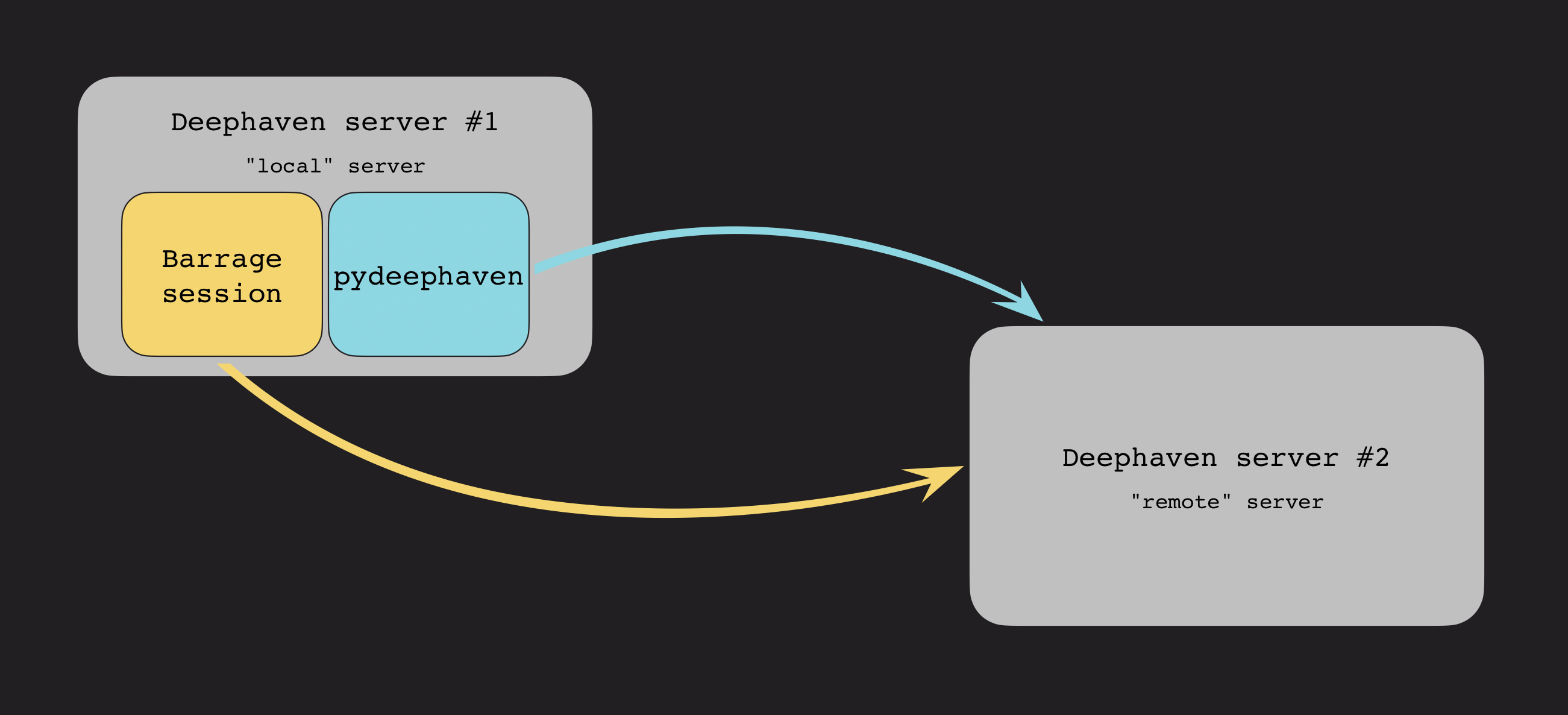
You need an installation of pydeephaven on the local server:
See the guide on installing Python packages for more information. To learn about the Deephaven Python client, check out the Python client Quickstart.
Connect the Python client to the remote Deephaven server
The Deephaven Python client creates and maintains a connection to the remote Deephaven server through a Session. You also use this object to create tables on the remote server. To connect, you supply the remote server's host name or IP address, port, and authentication details.
If you omit any of these, the Session uses a default:
- Host: the
DH_HOSTenvironment variable, orlocalhostif that variable isn't set. - Port: the
DH_PORTenvironment variable, or10000if that variable isn't set. - Authentication: anonymous authentication.
The local server already uses the default port, 10000, so suppose that the "remote" Deephaven server is running locally on port 9999 with anonymous authentication. Connect to it as follows:
If the remote server uses a different authentication method, pass auth_type and auth_token. Suppose that the "remote" Deephaven server is running at IP address 192.168.0.1 on port 11000, using pre-shared key authentication, where the key is D33phavenR0cks!. Connect to it as follows:
See the Session API documentation for more configuration options.
Retrieve table references using the client
Once you've established a client connection to the remote Deephaven server, you can use the Session instance to create new tables on the server or retrieve references to existing tables.
As an example, you can create a new static table on the server using empty_table:
table_ref is not a Deephaven table itself, but a reference to a Deephaven table on the server. See Python client tables are references to server tables for more information on table references.
Similarly, you can use time_table to create a ticking table on the server:
If a table already exists in the remote server's query scope, you can retrieve a reference to it with the open_table method:
Publish the table to a shared ticket
Once you have a reference to a table on the server, you can publish it with a shared ticket. First, create a shared ticket with the SharedTicket class, and publish the table to the ticket with publish_table:
The ticket stays valid only while table_ref is alive and client_session is open. If the session closes, or table_ref is closed or garbage-collected, new subscriptions to the ticket and new snapshots of it fail. Keep both for as long as subscribers need the table.
Capture the table with a Barrage session
To capture the table on the local server, use the barrage_session function to create a Barrage session. It takes the same connection arguments as Session: host, port, auth_type, and auth_token, plus use_tls and tls_root_certs for a server that uses TLS. It also takes extra_headers, a dictionary of extra headers to set on the gRPC channel.
Unlike Session, barrage_session doesn't read DH_HOST or DH_PORT. host is required, and port defaults to 10000, so pass both explicitly. For the anonymous server on port 9999, use barrage_session(host="localhost", port=9999). The following example matches the pre-shared key connection above:
The Barrage session can capture the table in two ways.
Use subscribe when:
- You need real-time updates as the source table changes.
- You're building a live dashboard or monitoring system.
- The source table is ticking (updating periodically).
Use snapshot when:
- You need a one-time, static copy of the data.
- The source table is static and won't change.
- You want to capture a point-in-time state for analysis.
- You need to reduce ongoing resource consumption.
By subscribing to the ticket, you can create a local table that updates in real time when the remote table changes:
Alternatively, take a static snapshot:
You now have local_t_streaming and local_t_static, which are real Deephaven tables on the local server. Unlike table_ref, they aren't references, so you can use them in any Deephaven query.
Manage subscriptions
This section covers what an active subscription costs, how to release it, how to recover from connection problems, and how to keep large subscriptions small.
Subscription resource usage
Each active subscription consumes resources on both the remote server and the local (subscribing) server:
| Resource | Remote server impact | Local server impact |
|---|---|---|
| Memory | Maintains subscriber state and pending updates | Stores table data and applies incremental updates |
| CPU | Aggregates updates once per table and update interval, then writes each subscriber's view | Deserializes and processes incoming updates |
| Network | Sends periodic update batches to each subscriber | Receives and buffers incoming data |
For tables with frequent updates or many subscribers, these costs can add up. Monitor subscription health using the Barrage performance tables.
Close the Barrage session when finished
When you no longer need the session's subscriptions or snapshots, close the Barrage session with close to release resources:
Dropping the Python reference to a subscribed table does not end its subscription: tables created in the console stay alive until the script session ends. To end one subscription while keeping the Barrage session open, create it inside a liveness_scope block; when the block ends, the table is released and its subscription is cancelled.
Handle connection issues
Network interruptions can break Barrage subscriptions. Consider these patterns for production applications:
- Reconnection: Subscriptions do not resume automatically after a disconnect. Create a new session with
barrage_sessionand resubscribe. The remote table must still be published to the same shared ticket; if the client session that published it was lost, publish the table again first. - Ticket lifetime: If the published table or
client_sessionhas gone away, re-publish before resubscribing. See Publish the table to a shared ticket. - Authentication expiry: The client refreshes its session token automatically while the session is open. Credentials are needed again only when you open a new session, for example after reconnecting, so make sure they are still valid then.
Memory considerations for large tables
When subscribing to large ticking tables:
-
Initial snapshot size: A subscription starts with a complete snapshot of the table. For very large tables, this can consume significant memory. By default, the server sends a large snapshot in several chunks (see snapshot size control), and the local table is returned once the whole snapshot has arrived.
-
Incremental updates: After the initial snapshot, only changes are sent: data for added rows, the changed columns of modified rows, and row keys for removed or shifted rows. This is typically much smaller than the full table.
-
Server-side filtering: If you only need a subset of the data, consider filtering the table on the remote server before subscribing. This reduces both network and memory usage. (Note: this is distinct from viewports, which define a scrollable window over row positions.)